I hope this message finds you well. I am writing to seek assistance with an issue I am facing while attempting to access the FileCloud admin panel on my AWS instance installation.
FileCloud Version: [Please specify the FileCloud version]
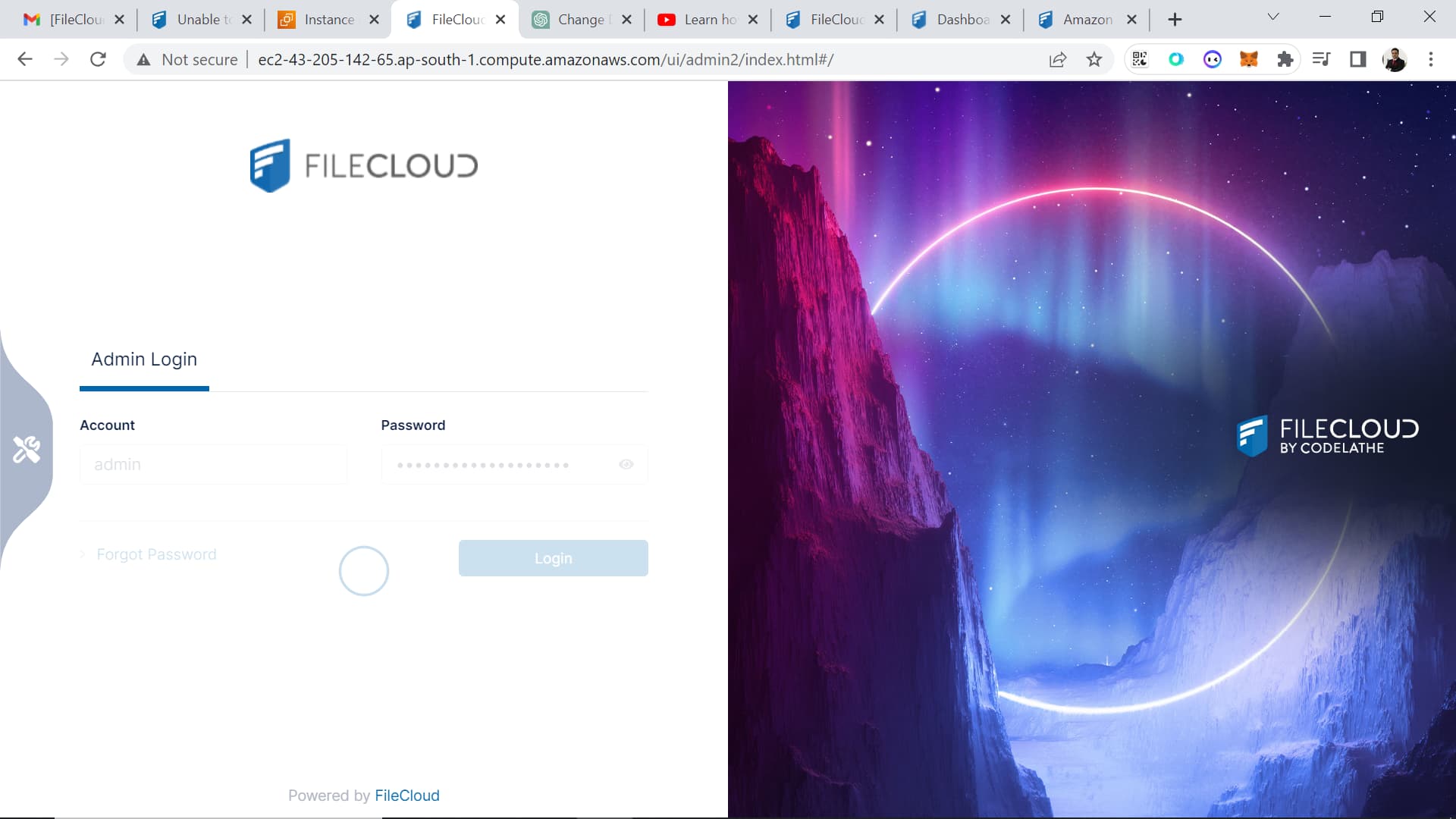
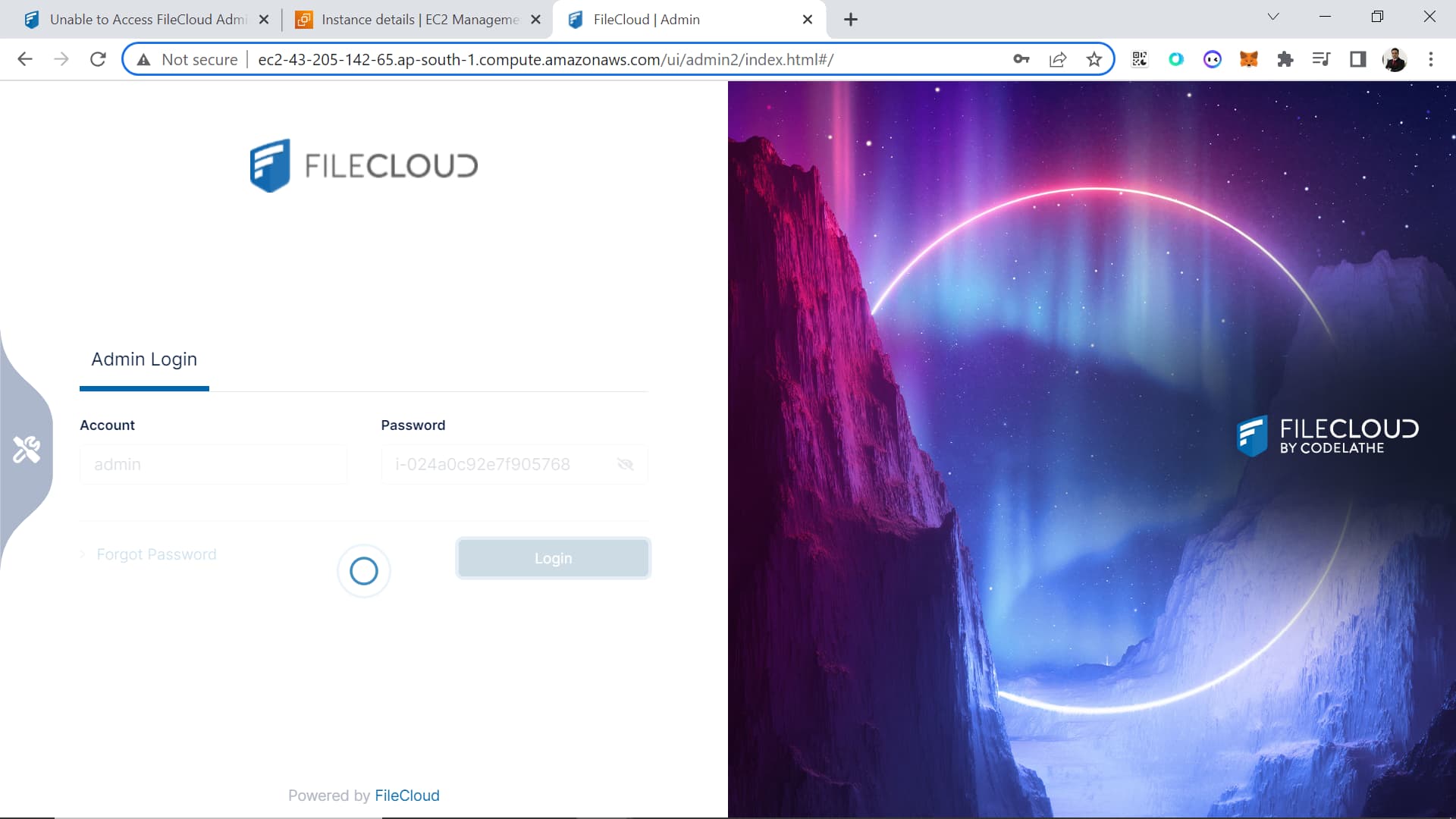
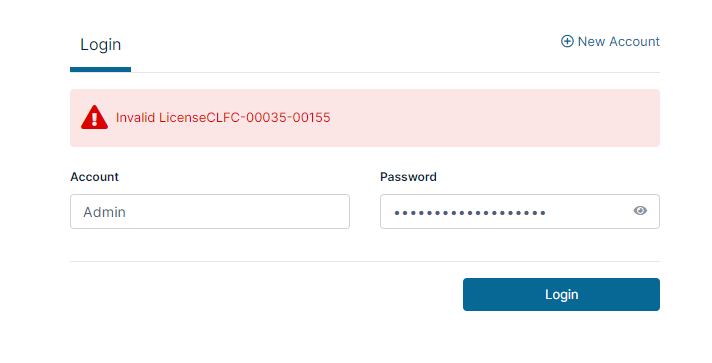
Problem Description: After successfully launching the FileCloud AMI on AWS, I am encountering difficulties while trying to log in to the FileCloud admin panel using the provided default credentials. I have attempted to access the admin panel using the following URL: FileCloud. However, the login process does not proceed further, and I am unable to access the admin panel.
Steps Taken:
Verified the provided instance ID as the password for the admin account.
Restarted the EC2 instance and attempted to log in again with the correct credentials.
Checked the EC2 instance’s status and network configuration, which appears to be normal.
Verified that the FileCloud AMI has been launched successfully.
Expected Outcome: I expect to be able to log in to the FileCloud admin panel successfully using the default credentials provided (Username: admin, Password: [AWS Instance ID]).
Additional Information:
Operating System: [Please specify the operating system used by the AMI, e.g., Ubuntu, CentOS]
AMI Region: [Please specify the AWS region where the AMI was launched, e.g., us-east-2]
I would greatly appreciate your support in resolving this issue and enabling access to the FileCloud admin panel. As I am new to FileCloud, any detailed steps or guidance you can provide would be immensely helpful. If there are any specific logs or configurations you require, please let me know, and I will be happy to provide them.
Thank you for your time and attention to this matter. I am looking forward to your prompt response and assistance.
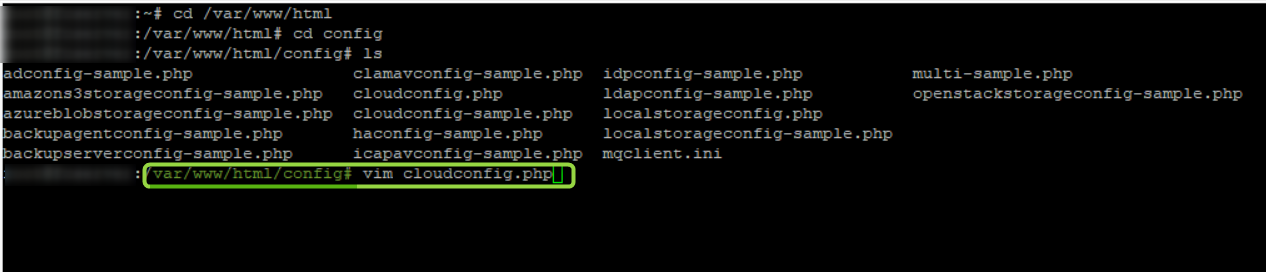
Open the configuration file cloudconfig.php which will under the following path:
/var/www/html/config/cloudconfig.php
Check for the following line:
define(“TONIDOCLOUD_SECURE_COOKIE”, 1);
Please change the value to 0 and save the file.
Then you should be able to login to admin portal.
Then please check and confirm, if the Disable IP check option is disabled from your end. It can be checked as follows:
Log into Admin Portal
From the left navigation panel, select SETTINGS and then Misc and then General
On the Settings screen, select the Misc. tab, and then the General sub tab.
Check for Disable IP Check, select the checkbox to disable the IP check on every request. Then save the changes. This allows you to avoid IP comparison on cookies.
ec2-3-133-145-184.us-east-2.compute.amazonaws. com sent an invalid response.
[Try running Windows Network Diagnostics](javascript:diagnoseErrors()).
ERR_SSL_PROTOCOL_ERROR
i checked some articles and tried to fix the issue with nginx service. stopped the apache2 server and made change the port to 8080 from 80 in default file for nginx as it may be a conflict with apache2 to use the same port.
If you see this page, the nginx web server is successfully installed and working. Further configuration is required.
For online documentation and support please refer to [nginx. org](http : //nginx. org/).
Commercial support is available at [nginx. com](http :// nginx. om/).
Thank you for using nginx.
How to resolve this to login in filecloud server to proceed further.
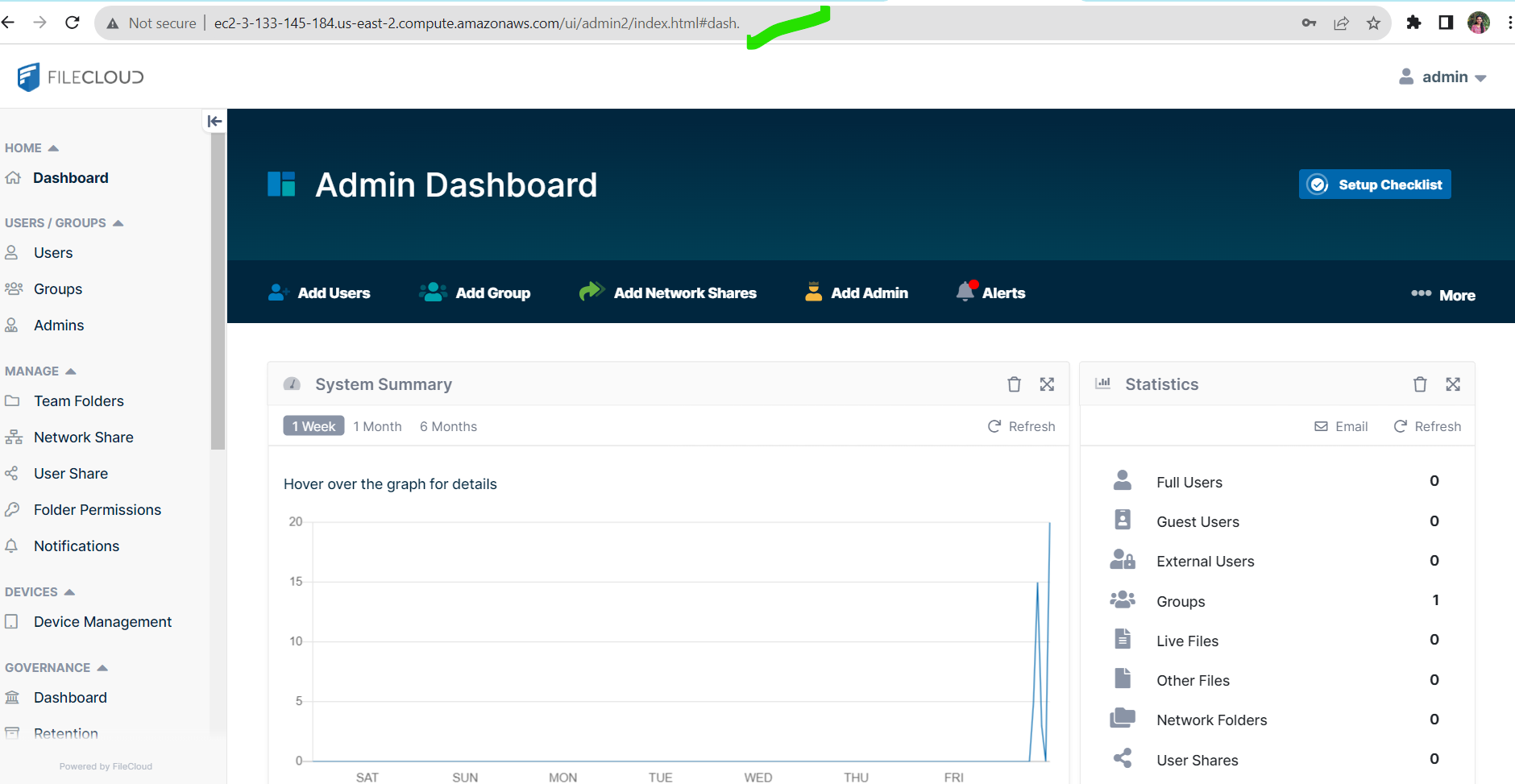
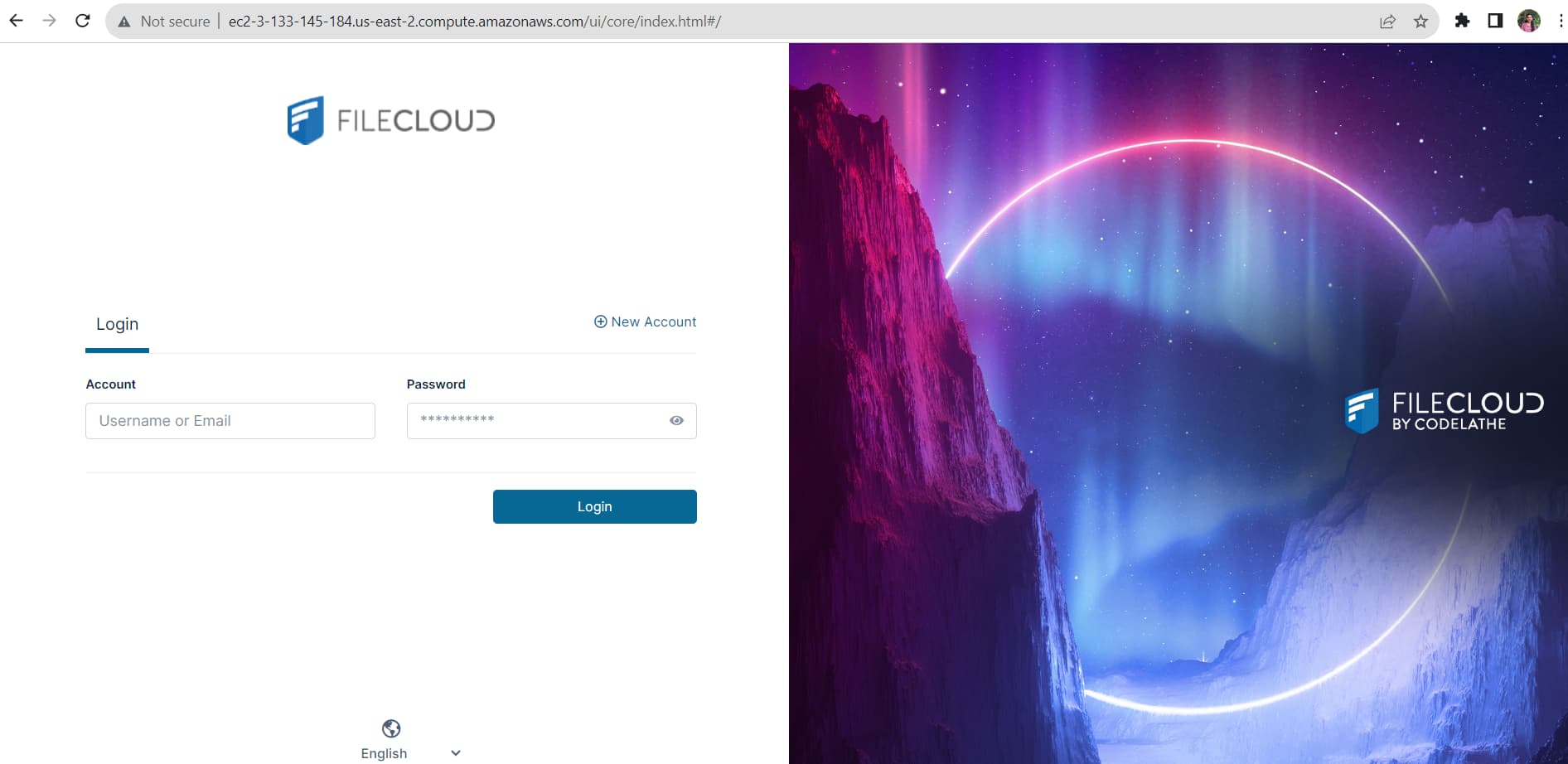
Upon checking, I could see that now both Admin Portal and the User Portal can be accessible successfully. I also tried to login into the Admin Portal using the provided details and everything seems to be working fine now.
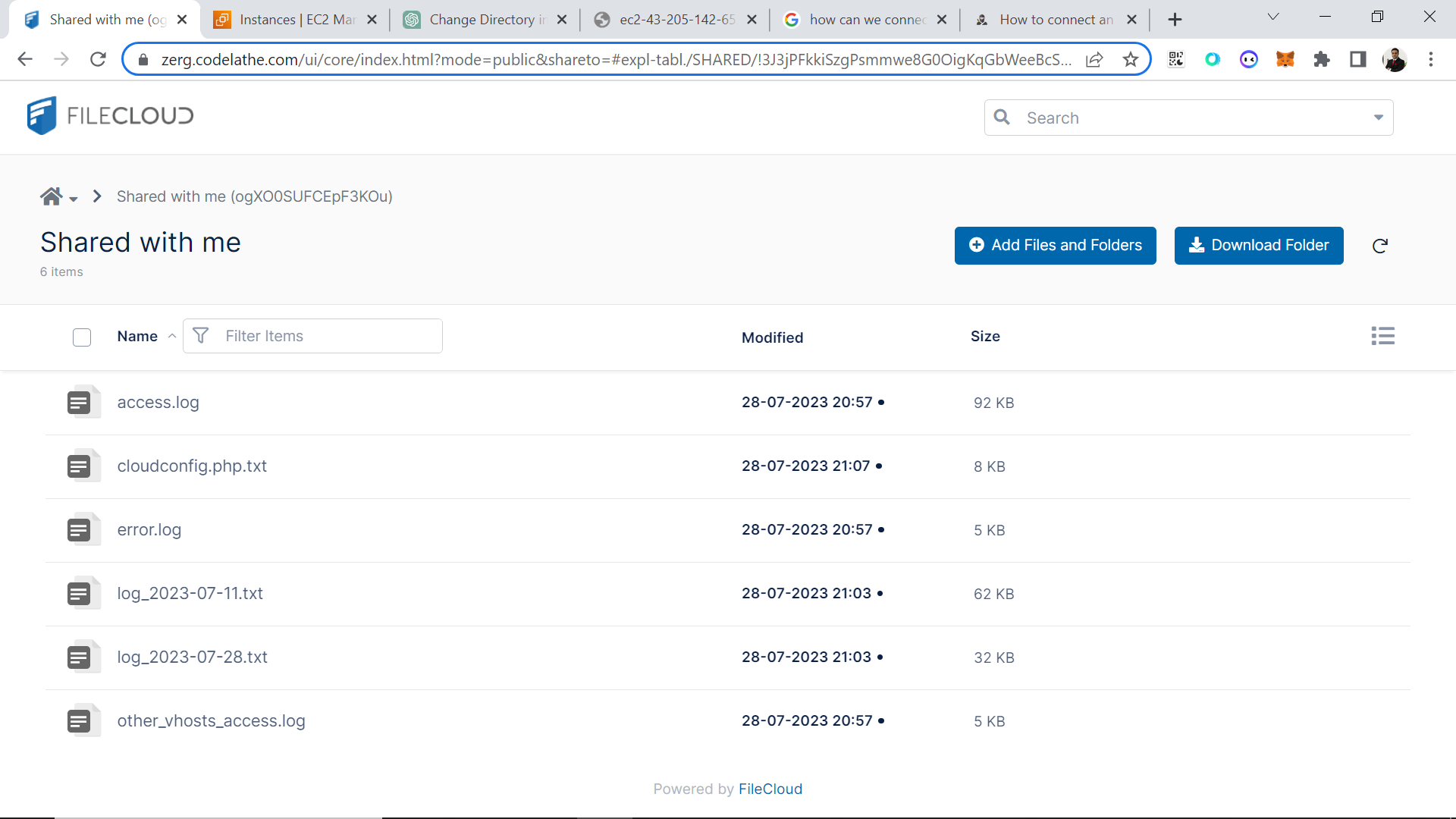
Kindly find the attached screenshots for your reference on this.
Kindly try to clear the browser cache and cookies then give a try to access the above URLs. You can also try to access them in the incognito mode of the web browser.
As per the error log it looks like password details are incorrect.
ERROR: [16905740798654] adminlogin error: Incorrect username or password.
We will check this for you.
Kindly let us know the following details:
Let us know the current FileCloud URL and the login details used for your admin portal.
Enable the debug mode in the cloudconfig.php which you can find at path /var/www/html/config/cloudconfig.php as follows:
Locate the following line in cloudconfig.php file:
// … Advanced Settings
define(“TONIDOCLOUD_OP_MODE”, “PROD” ); // < VALID values are DEV | PROD
change the value PROD to DEV and save the changes.
Please provide us the cloudconfig.php file once after making above changes
Previously provided error log do not have much information since the DEV mode was not enabled. Kindly provide us the Apache log and FileCloud Server Log once after enabling the DEV mode as guided above
Please reproduce the error again by trying to login into your admin portal with DEV mode enabled from the cloudconfig.php
Apache log from the following path Linux: /var/log/apache2
Linux: /var/www/scratch/logs/log_YYYY-MM-DD.txt (in Ubuntu 14.04 and later
          /var/www/html/scratch/logs/log_YYYY_MM_DD.txt)
You can share all the above requested details here: FileCloud
define(“TONIDOCLOUD_SECURE_COOKIE”, 1);
Please change the value to 0 and save the file.
If you are unable to find this line then kindly add it in cloudconfig.php file as follows then save the changes.
define(“TONIDOCLOUD_SECURE_COOKIE”, 0);
Also kindly make sure that you are trying to login to the Admin Portal at the right URL.
Could you please provide us more details on your concern?
Let us know which file you are seeing as read only and provide us the screenshot of it.
Also provide us the complete screenshot and error message of the issue that you are experiencing from your end.