Hi all,
I generated a self-signed certificate (both key and crt files only, no CA chain file generated) on server console and updated the configuration files by following the link Install an SSL certificate on Ubuntu - FileCloud - FileCloud Support
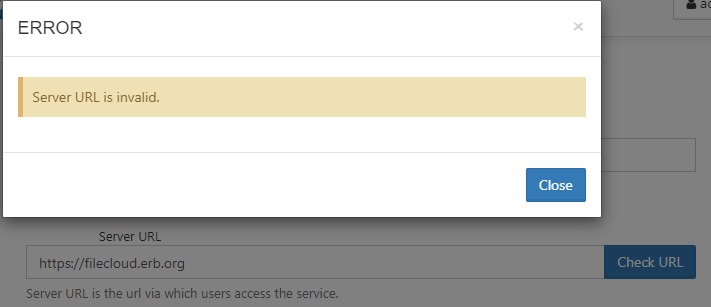
After restarting the apache server and trying to open the server URL starting with “https://”, the “server URL is invalid” error showed on screen.
I would like to know the following:-
- Can the self-signed certificate be used to your filecloud application to provide https service ?
Regards,
Hi @arthurchan
Can you please share the screenshot of the share and server URL to assist you better with this?
Hi,
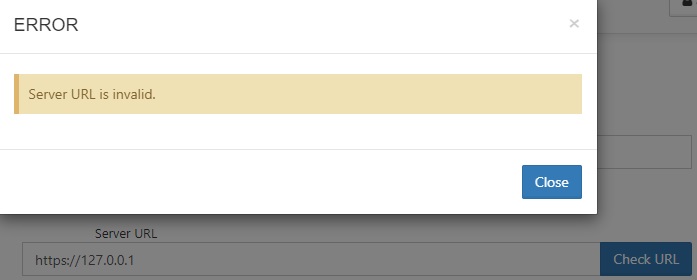
Below please find the screen shots for your follow-up.
Regards,
@arthurchan
Please add the below entry in the " /etc/hosts " in the server and check whether you can change the server URL to https://filecloud.erb.org
127.0.0.1 filecloud.erb.org
Hi all,
The entry “127.0.0.1 filecloud.erb.org” had been added to /etc/hosts before your reply but the error could still not be fixed.
We can change the Server URL to https://filecloud.erb.org in Settings → Server → Server URL of admin web page but can not save this change as the error “Server URL is invalid” showed on screen when clicking the “Check URL” button.
By the way, we set an private IP (not a public IP) and installed a self-signed certificate (generated with openssl) to this server for testing in our intranet, must we set a public IP and installed ssl certificate from a public trusted CA to this server in order to solve “Server URL is invalid” problem ?
Regards,
Hello @arthurchan
Please share with us the FileCloud Log from the server after setting the LOG level to DEV. You can do this by navigating to Admin Portal > Settings > Server > Log Level.
Once the log level is set to DEV, try to reproduce the issue and send the logs. You can find the location of the logs as follows.
Linux: /var/www/scratch/logs/log_YYYY-MM-DD.txt (in Ubuntu 14.04 and later /var/www/html/scratch/logs/log_YYYY_MM_DD.txt)
Example: /var/www/html/scratch/logs/log_2020-06-27.txt (Select the latest date)
This problem has been solved when installing an SSL certificate by trusted CA instead of self-signed one.
Regards,
Hello Everyone, i am facing the same issue.
I’m using a valid trusted CA (Google) without any intermediary/proxy (CloudFlare).
127.0.0.1 xxx.domain.xxxx added to /etc/hosts
2023-09-22 13:36:10.555297 INFO: [16954077703719] checkserverurl: SiteAdmin auth detected for checkserverurl with account [xxxxxxxxx]
2023-09-22 13:36:10.566488 DEBUG: [16954077703719] Checking Server URL https://files.domain.com/ui/core/index.html
2023-09-22 13:36:10.576989 DEBUG: [16954077703719] Server URL is not reachable and invalid.
2023-09-22 13:36:10.580152 DEBUG: [16954077703719] log : LOGGING AUDIT checkserverurl
2023-09-22 13:36:11.342011 DEBUG: [16954072953405] BACKGROUND : [PARALLEL] Calling : CodeLathe\Core\Subsystem\Analytics\Audit\AuditManager:log_bg
2023-09-22 13:36:15.516162 DEBUG: [16954077753274] Critical Section: Acquired SERIAL_LOCK 650dde9f72d592.586941961695407775.3274650dde9f72d639.42210813
2023-09-22 13:36:15.521640 DEBUG: [16954077753274] Critical Section: Released SERIAL_LOCK who 650dde9f72d592.586941961695407775.3274650dde9f72d639.42210813
They accept httP but not httpS
Os: Ubuntu 22.04 x64
Any advice?
Hi @natanaelfornel
You cannot setup URL until unless you have chain/intermediate certificate installed for more details on configuring them please refer to the below document.
You are the best.
That was exactly the article I used, but I forgot the intermediate certificates 
Now it’s 100%.
Thank you so much!
Just a question, do you have any advice to make the same configuration using CloudFlare Certificates?
When i use “external” SSL it’s working but when i use a CloudFlare they don’t allow me to perform the change.
Hi @natanaelfornel,
Could you please confirm the following details?
What is the issue you are experiencing when you follow the mentioned steps for cloudflare ssl?
Do you get any errors? If yes let us know the complete error message with the screenshot
Also you can check the following cloudflare support doc Encryption modes · Cloudflare SSL/TLS docs
Hi @Dakshini ,
1.- I created a certificate for subdomain (Origin Server)
2.- I following Install an SSL certificate on Linux - FileCloud Docs - Server
3.- The encrypted mode used is Full (strict).
The access to FileCloud is performed via SSL but inside panel isn’t possible change from h tt p://127.0.0.1 to h ttp s://xxx.domain.com
2023-09-25 18:05:09.940214 DEBUG: [1695683109879] START [76.68.224.207] POST fileserver.xxxxxxxx.com:/admin/?time=1695683109110
2023-09-25 18:05:09.942510 DEBUG: [1695683109879] Rewriting URI: /admin?time=1695683109110 => /admin/checkserverurl?time=1695683109110&op=checkserverurl
2023-09-25 18:05:10.069435 DEBUG: [1695683109879] No Admin Session in Database found to Extend for 0a46a5ce44959f5a831853bd494f7ae77a149b07 76.68.224.207, or extension not needed
2023-09-25 18:05:10.072298 DEBUG: [1695683109879] No Admin Session in Database found to Extend for 0a46a5ce44959f5a831853bd494f7ae77a149b07 76.68.224.207, or extension not needed
2023-09-25 18:05:10.072401 INFO: [1695683109879] checkserverurl: SiteAdmin auth detected for checkserverurl with account [admin]
2023-09-25 18:05:10.084599 DEBUG: [1695683109879] Checking Server URL http s://fileserver.xxxxxxx.com/ui/core/index.html
2023-09-25 18:05:10.102050 DEBUG: [1695683109879] Server URL is not reachable and invalid.
2023-09-25 18:05:10.105595 DEBUG: [1695683109879] log : LOGGING AUDIT checkserverurl
2023-09-25 18:05:10.870872 DEBUG: [16956746835844] BACKGROUND : [PARALLEL] Calling : CodeLathe\Core\Subsystem\Analytics\Audit\AuditManager:log_bg
I also follow the instructions in Network Chuck Video Tutorial about FileCloud.
Hi @natanaelfornel
To set the URL for the server, please follow this one-time use script and steps on your web node:
-
Download zip file from the below URL and unzip
FileCloud
-
Create a new folder named “misc” under /var/www/html/resources/tools
-
Place the unzipped file settingutil.php under /var/www/html/resources/tools/misc
-
Run the below commands to set the Server URL.
cd /var/www/html/resources/tools/misc
php settingutil.php --set=TONIDOCLOUD_SERVER_URL --value=“https://yourserverurl.tld” (replace https://yourserverurl.tld with your valid URL)
After running the tool, it should set your FC Server URL