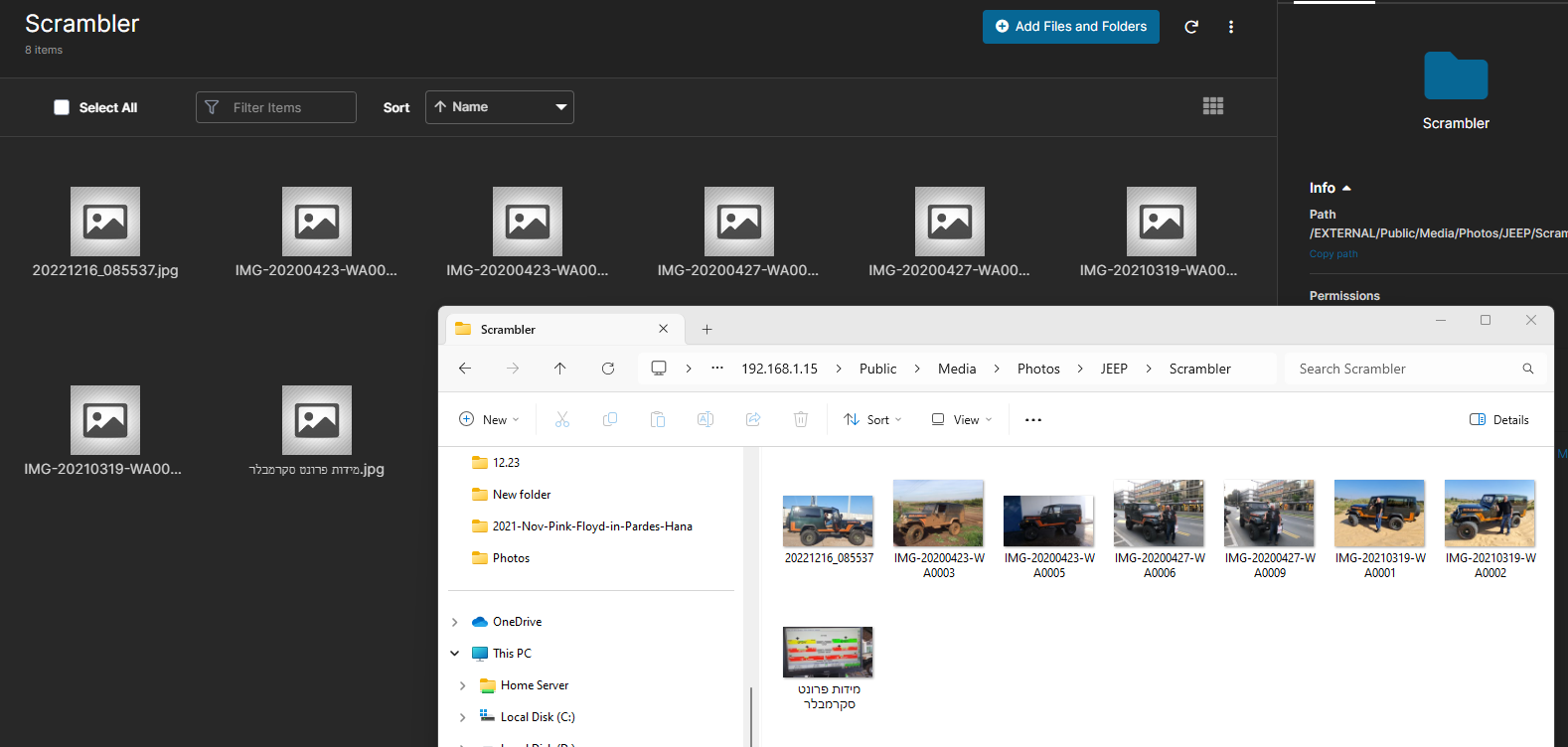
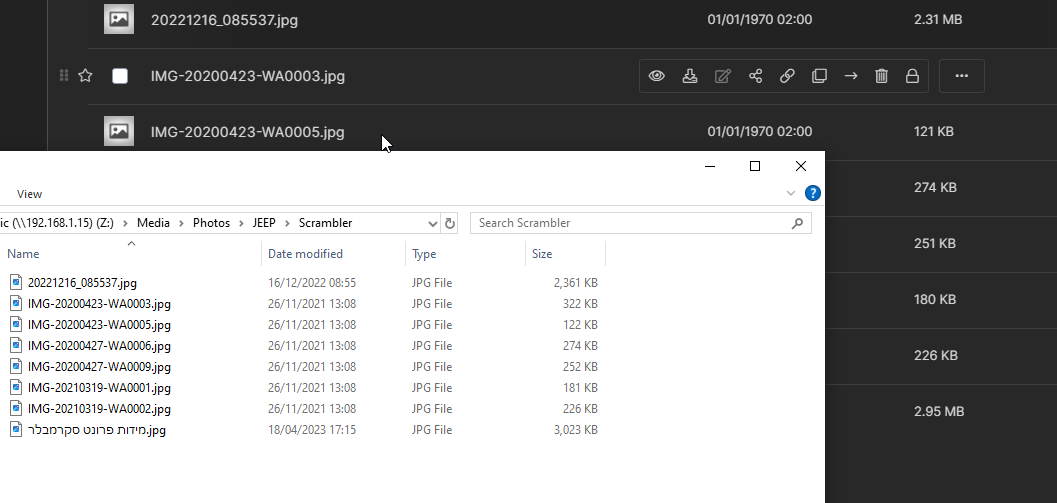
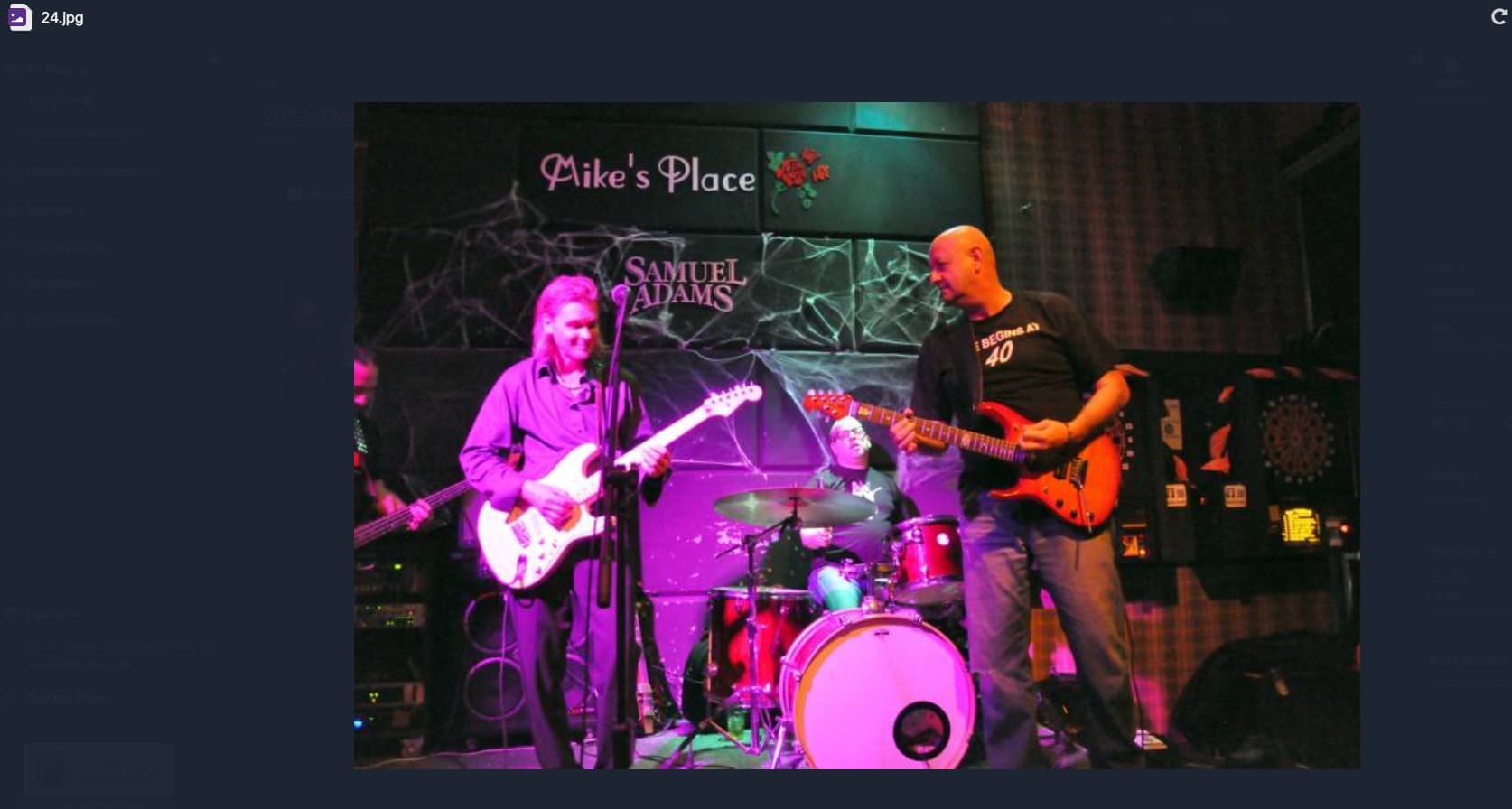
I’ve mounted a network share to my filecloud (samba). All of my photos that were previously on the share, show correclty.
Anything I uploaded after installing filecloud does not show in file cloud, altough it’s perfectly visible any where else. My share is on an Ubuntu server situated at my home, and filecloud is installed on the same server.
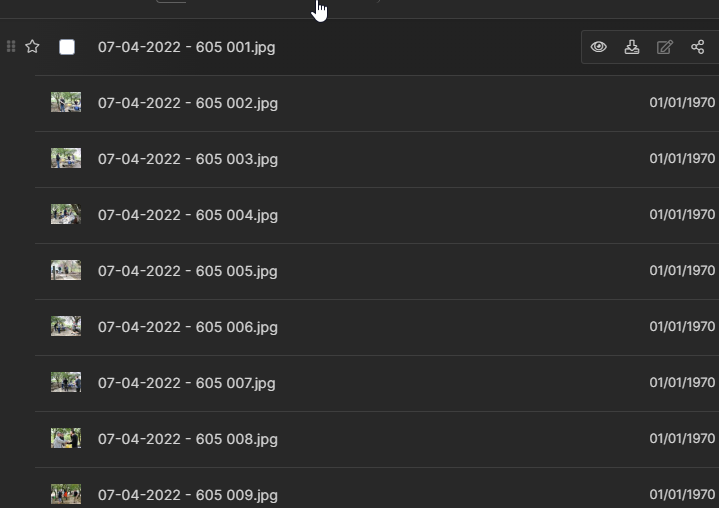
I’m attaching a screenshot of one of the photos directories I recently uploaded, to show how it looks inside filecloud vs regular explore
We will need filecloud server logs in DEV mode to investigate this issue further. To enable debug mode, open the Admin Portal, go to Settings->Log Level, and set it to “DEV”.
After this property change, there is no need to restart any services. The change should be picked up automatically.
Then please replicate the issue and send us the logs.
You can find the FileCloud logs from here:
Linux: /var/www/html/scratch/logs/log_YYYY_MM_DD.txt)
Once you have the logs, please upload them to here : FileCloud
Can you at least open the thumbnails from the screenshot above from the User Portal? Are there any other files in your FileCloud system that shows the same behavior?
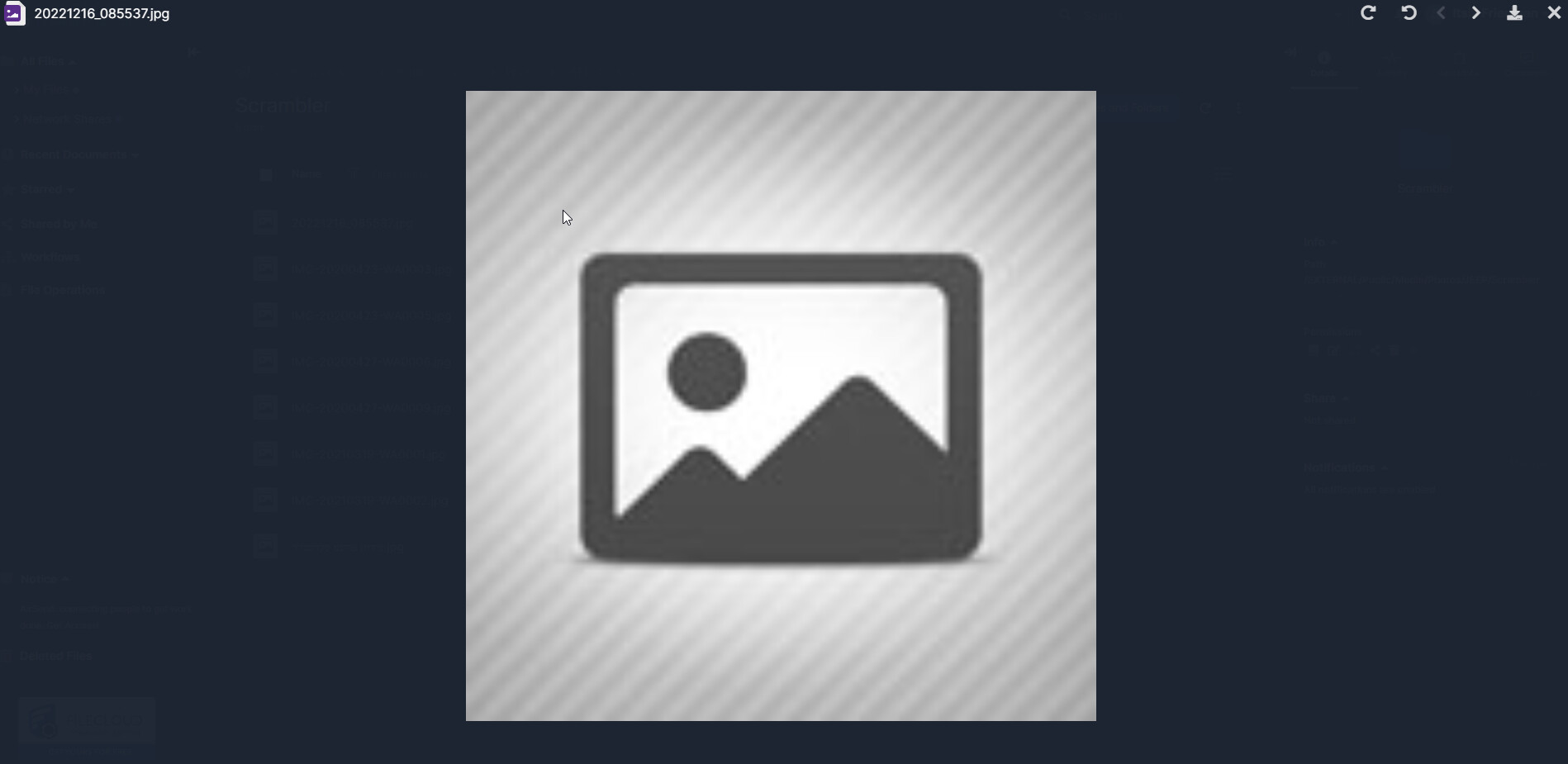
Opening those files shows the same place holders as in the preview.
Re. your second question, all my files are on a network share on my ubuntu server. This behavior happenes only with files I uploaded to the share after Filecloud was installed (the upload was not done via Filecloud). Anything that was on this share prior to Filecloud installation is presented correctly including thumbnail and full size photos.
@lorencelumapas
Yes, I can click the files and they open with the same placeholder image. the file sizes are the same…
I’m attaching the corresponding screenshots…
You mentioned previously that “All of my photos that were previously on the share, show correctly.”, do you mean that it’s viewable in the FileCloud user portal or is it just viewable outside of FileCloud?
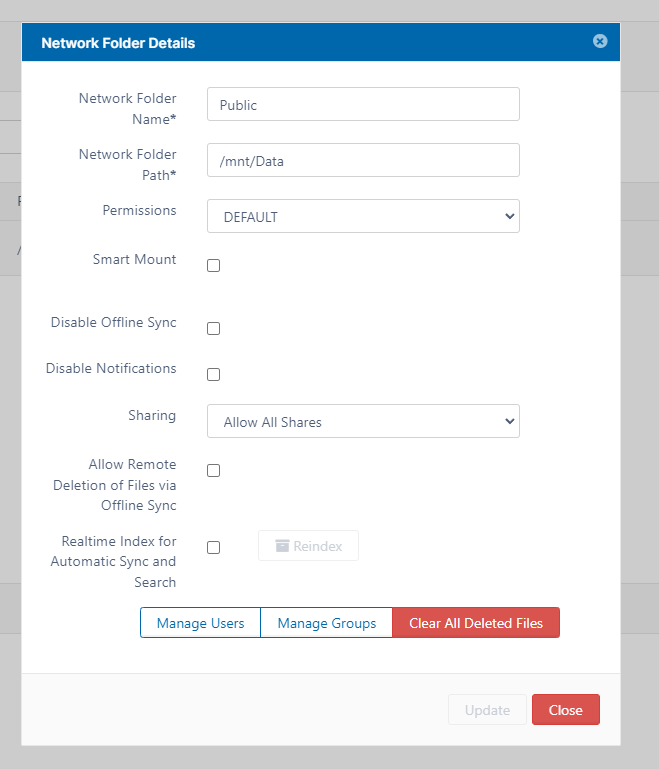
If it’s only outside of FileCloud, can you send me a screenshot of the Admin Portal >> Network Shares screen? I need to see what your mapping looks like so we can check the proper permissions.
The service account running the FileCloud webserver should have sufficient access to the actual network path.
Hi @lorencelumapas
Sorry for the late reply but I was out of town.
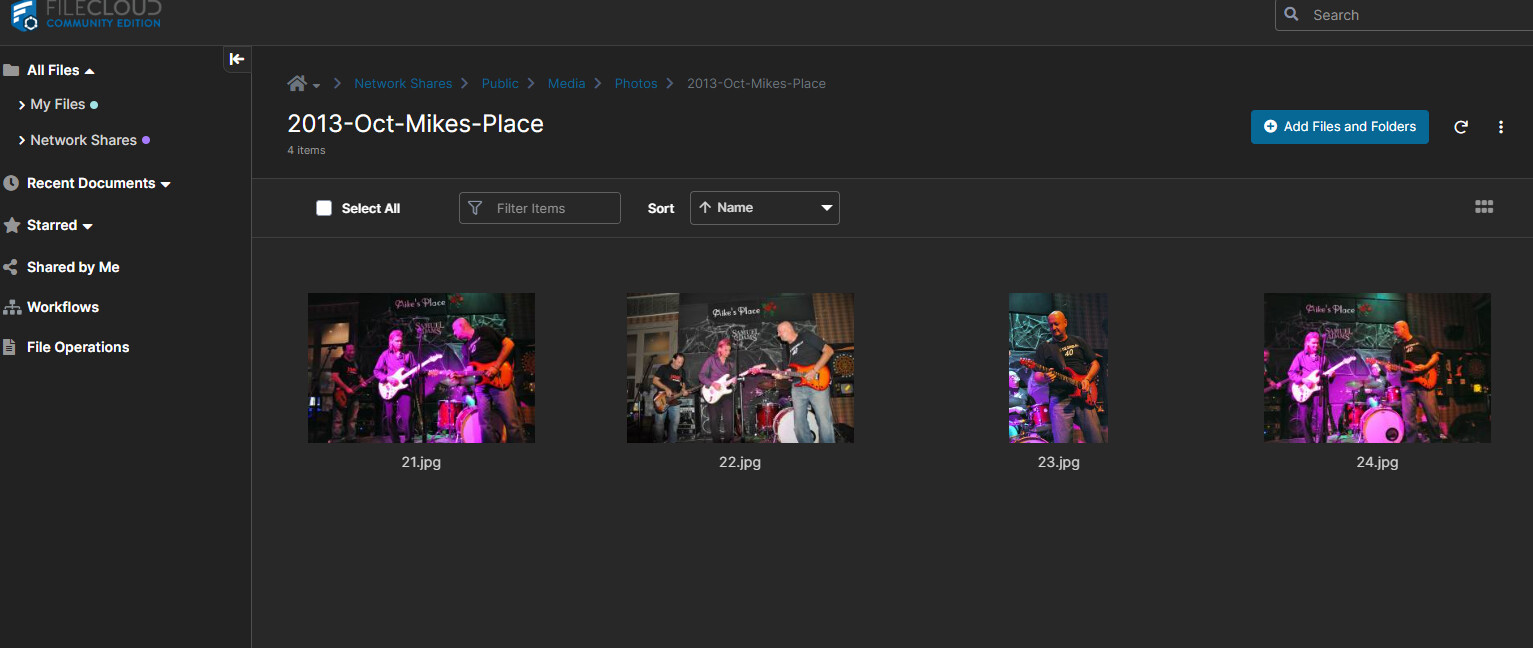
I can see all the photos that were on the server before the FileCloud installation just fine from within the FileCloud user portal.
I’m attaching screenshots of a folder with some photos, a display of one of those photos and the the network folders permissions screen…
Yesterday I uploaded some more photos and videos to that share (not thru FileCloud), and it continues to behave exactly the same. Photos are not visible thru FileCloud, but are presented just fine any other way. However, the videos I uploaded along with the photos play perfectly fine thru file cloud.
Any ideas?
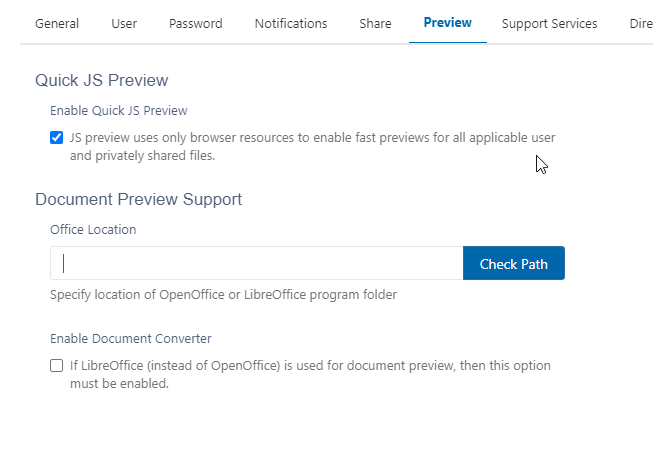
Preview is enabled. I can only see thumbnails (as well as photos) only of photos that were on the server before FileCloud installation. Anything uploaded after that is not viewable.
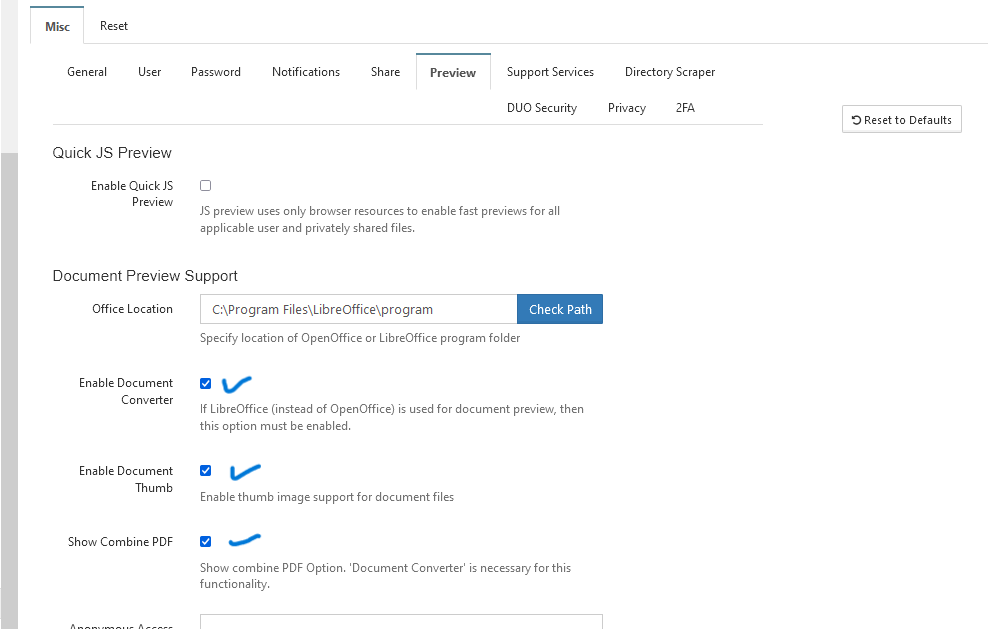
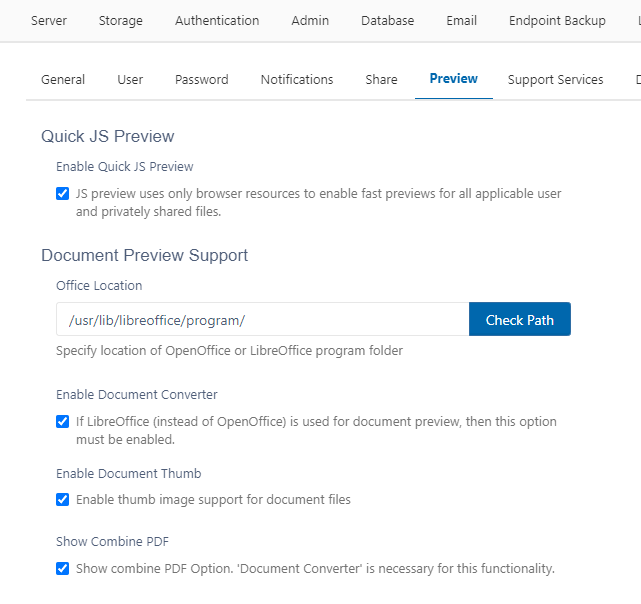
Can you please provide us with a complete screenshot of your preview settings after making all the changes suggested below? Please follow the below steps to check the preview settings
Admin Portal > Settings > Misc > Navigate to the Preview option
Could you make sure to enable LibreOffice doc preview?
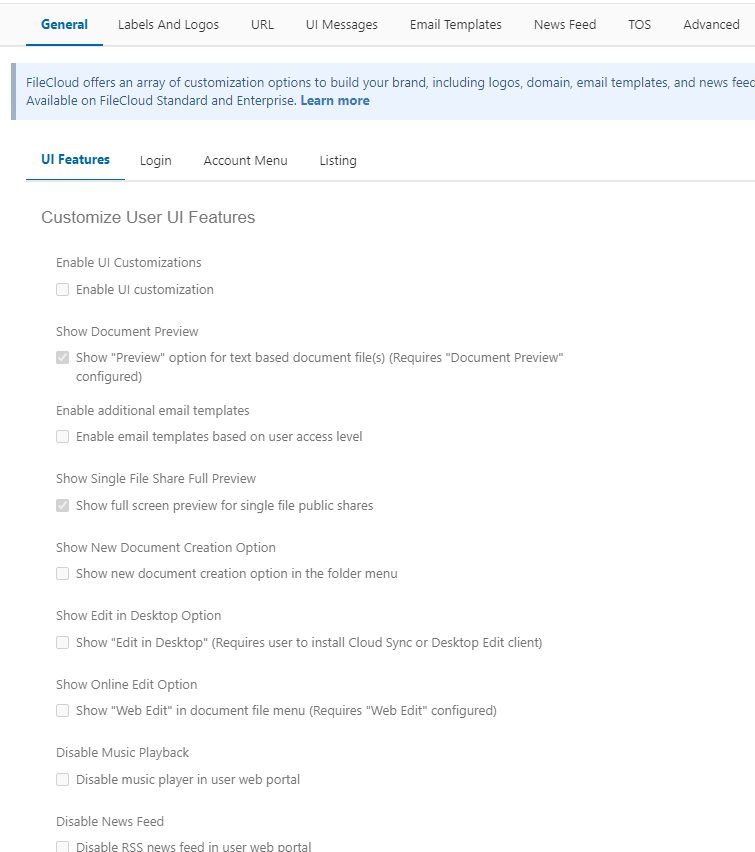
Also, let us know if the Show Document Preview option is enabled. This can be confirmed as follows:
Admin Portal > Customization > General > UI Feature > Show Document Preview option should be enabled, then save the changes.
Please confirm if the Document Preview is running in Control Panel successfully. Let us know the storage type that you are using.
Please refer to the following support doc for detailed information on Document Preview:
Kindly enable the Document Thumb option:
Admin Portal > Settings > Misc > Preview > Next to Enable Document Converter, select the checkbox > Next to Enable Document Thumb, select the checkbox > save the changes
Provide us the screenshot after making all the changes suggested above
Also, please provide us with your FileCloud server logs in debug mode:
To enable debug mode, open the Admin Portal, go to Settings > Server > Log Level, and set it to “DEV.”
Kindly reproduce the issue. Please download the logs in FileCloud Admin Portal → SYSTEM → Checks → Generate Log
Let us know if you have changed your environment during this time. If yes, please let us know the details on changes made
Could you also provide us with the php.ini file, which you can find in the following path: Drive name:\xampp\php\php.ini
Please provide us the event view log:
You can extract Windows Event logs through the command prompt (You need to run the command prompt as an administrator):
wevtutil epl System %userprofile%\Downloads\SystemLog.evtx
wevtutil epl Application %userprofile%\Downloads\ApplicationLog.evtx
Hi @Dakshini
Sorry for the late reply, out of town again …
Filecloud is installed on a self hosted ubuntu server. The Data is a SMB share.
I’m attaching all you asked.
I’ve uploaded the event log and php.ini
Admin Portal > Customization > General > UI Feature
This is all grayed out. I can’t change anything there
I appreciate the additional information. The second screenshot tells you the customization feature is unavailable for a Community Edition license. However, that should not directly affect the image thumbnail for now.
Let’s do this to compare.
Log in to the Web User Portal.
Go into your My Files folder and create a Test folder.
In the Test folder, upload one photo with the largest file size.
Check if you have a thumbnail after the upload.
Now, still in the Web User Portal, open Dev Tools on your browser by pressing F12.
With Dev Tools enabled, navigate to your Network Folder with the image files with broken thumbnails.
In the Network Tab in the Dev Tools you would notice entries generated.
I need a copy of the HAR file, you can export the results by clicking on the Export Har file button. This should generate the HAR for the actions.
Please send me the exported HAR files, latest server logs with Dev logging enabled and the filename for the test file. Thank you.
Hi @lorencelumapas.
Once again, sorry for the delayed reply.
I did it on the Filecloud folder and all worked, tried to do it on the netrwork share and it wouldn’t let me create a folder. I then uploaded the photo to an existing folder on the network share, and it worked as expected and the photo and it’s thumbnail are visible. I also tried to upload the photo to the directory with the broken images and thumbnails, and the photo failed to upload.
The har file has been uploaded here. Please check the file named “cloud.rc-cars.co.il-new.har” as this is after trying to upload the photo to the said directory.
I can’t get the server logs as I have a popup in the admin panel requesting to send additional info and choosing not to do this does not make the popup disapear, so I can’t get to the admin panel…
Thanks
Itsik