So, I have setup a proxmox server in which I created a Debian VM in which I’m hosting filecloud using docker. In the “/var/www/html” directory there wasn’t originally a .htaccess file, so I created one with the following code:
RewriteEngine On
RewriteRule ^([a-z]+)/([0-9]+)/?$ index.php?page=$1&id=$2 [NC,L]
and I’ve enabled the mod_rewrite module using sudo a2enmod rewrite and sudo service apache2 restart. Oh! And finally I’ve changed the “AllowOverride” option to “All” in “/etc/apache2/apache2.conf”
And still it doesn’t work. Any help please?
Oh, I forgot to mention that I haven’t setup HTTPS with an SSL certificate yet.
One final edit I forgot to mention: when I try to go to the admin login page it says: “An internal error has occurred while processing your request.”
Basically, I’m asking if Filecloud has specific rules I need to put in the .htaccess file.
Hello @GAMINGCHATS ,
Can you upload your .htaccess file here? FileCloud
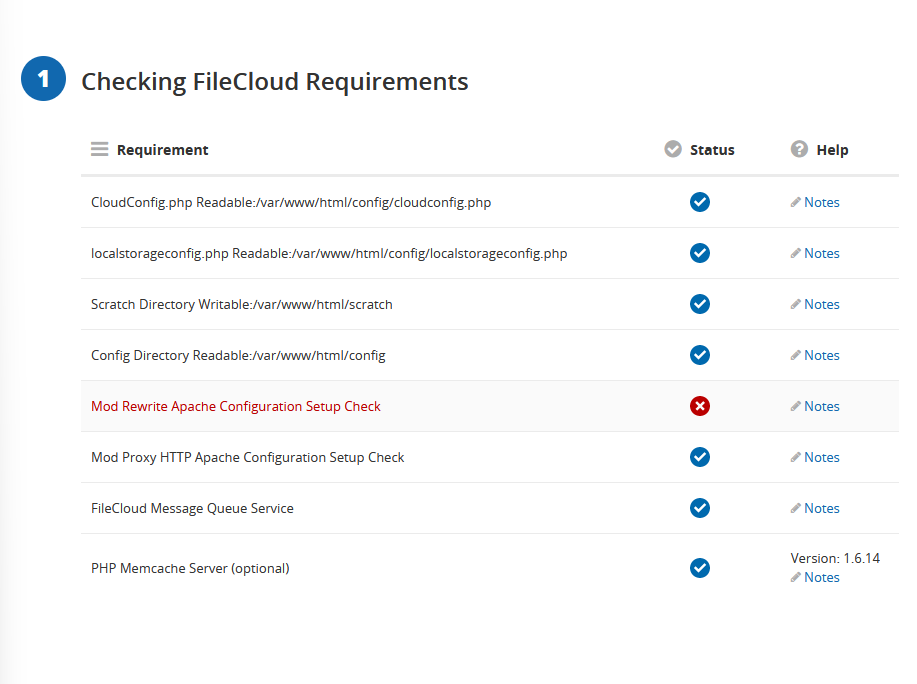
Also, can you post a screenshot of your installation checks? You can access checks by logging into your FileCloud Admin portal → ‘Checks’ .
Why do you need me to upload the .htaccess file? I have told you what is inside it:
^^^
And here is part 1 from my installation checks. If you need me to send something more tell me.
Hi @GAMINGCHATS
Could you please check and confirm if your .htaccess file is the same as the one which is attached in the link below if not can you replace the file with the below and try to access the Site again.
I couldn’t access the link.
Hi
Kindly confirm are you experiencing any issues while trying to login to admin portal if yes let us know the error message you are getting
This is the error message I’m getting when I try to access the admin portal login page:
“An internal error has occurred while processing your request.”
@andrewgates see my above message.
Hi
Open the configuration file cloudconfig.php which will under the following path:
Windows Drive letter:\xampp\htdocs\config\cloudconfig.php
Linux /var/www/html/config/cloudconfig.php
Check for the following line:
define(“TONIDOCLOUD_SECURE_COOKIE”, 1);
Please change the value to 0 and save the file.
Then give a try to login. If you find any difficulty, kindly let us know
Hi
Open the configuration file cloudconfig.php which will under the following path:
Windows Drive letter:\xampp\htdocs\config\cloudconfig.php
Linux /var/www/html/config/cloudconfig.php
Check for the following line:
define(“TONIDOCLOUD_SECURE_COOKIE”, 1);
Please change the value to 0 and save the file.
If it is not added kindly add the following line and then give a try again to login
define(“TONIDOCLOUD_SECURE_COOKIE”, 0);
If you find any difficulty, kindly let us know
Nothing changed same error messages as noted in previous messages.
Hi
To further troubleshoot the issue we will require the FileCloud server logs
Please reproduce the error again with server logs in debug mode
To enable debug mode, open the Admin Portal, go to Settings->Log Level, and set it to “DEV”
Then please replicate the issue and send us the logs
Please download the logs in FileCloud Admin Portal → SYSTEM → Checks → Generate Logs
Manual log collection
You can find the FileCloud logs from here
Windows: drive letter:\xampp\htdocs\scratch\logs\log_YYYY-MM-DD.txt
Linux: /var/www/scratch/logs/log_YYYY-MM-DD.txt (in Ubuntu 14.04 and later
/var/www/html/scratch/logs/log_YYYY_MM_DD.txt)
kindly upload it here FileCloud
If you read my messages you would know that I can’t login to the Admin Portal of Filecloud. when I go to
http://“serverip”/admin
this error message shows up
“An internal error has occurred while processing your request.”
@Dakshini Read my message
Hi
To further troubleshoot the issue we will require the FileCloud server logs
Open the configuration file cloudconfig.php which will under the following path
Windows Drive letter:\xampp\htdocs\config\cloudconfig.php
Linux /var/www/html/config/cloudconfig.php
check for the following line and change the value from PROD to DEV
define(“TONIDOCLOUD_OP_MODE”, “PROD” ); // < VALID values are DEV | PROD
change it to define(“TONIDOCLOUD_OP_MODE”, “DEV” );
save it
You can find the FileCloud logs from here
Windows: drive letter:\xampp\htdocs\scratch\logs\log_YYYY-MM-DD.txt
Linux: /var/www/scratch/logs/log_YYYY-MM-DD.txt (in Ubuntu 14.04 and later
/var/www/html/scratch/logs/log_YYYY_MM_DD.txt)
kindly upload it here FileCloud
The cloudconfig.php file is one I had created so I’m adding the line
define(“TONIDOCLOUD_OP_MODE”, “DEV” );
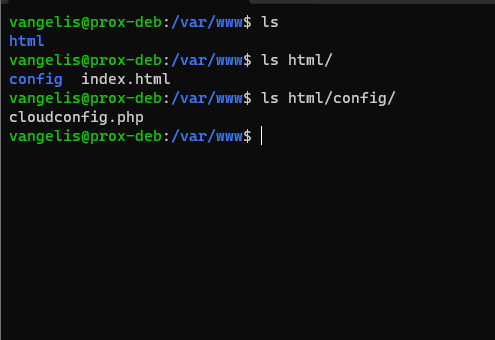
Also, under the directory “/var/www/” there isn’t the directory scrat/logs…
Hi
Kindly provide us the screenshot of the file and folder contents that are under /var/www