I have configured FileCloud Community edition in AWS.
If I connect via the public DNS provided by AWS I can log in just fine.
I have configured a Domain in Cloudflare with Origin certificate and setup the SSL certs according to documentation.
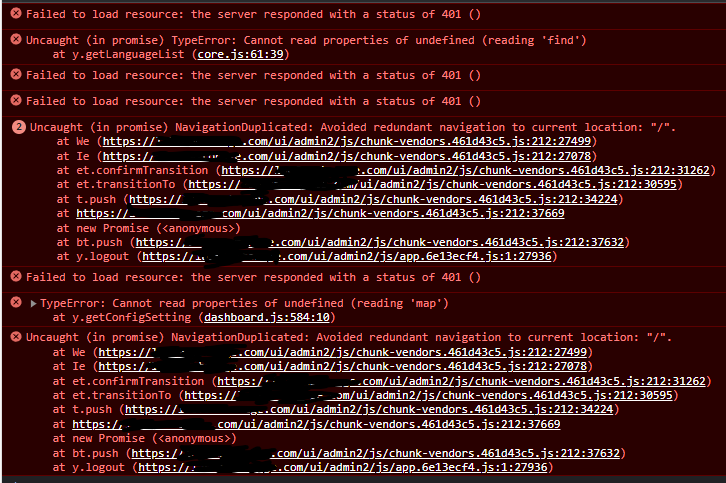
When I log in via the domain name for the admin, I get authenticated but as soon as the dashboard loads I get sent back to the login screen.
Here is what I see in the DEV tools
Please help me resolve this issue. Thank you in advance.
Hi @jaylab9911,
No worries, we will check this for you.
Kindly let us know the following details.
Could you please confirm the website URL that you are referring to?
Kindly provide us with the Apache Webserver log and FileCloud server Log.
Apache Webserver access.log and error log can be obtained from below location:
Linux: /var/log/apache2
Windows: Driveletter:\xampp\apache\logs
You can find the FileCloud logs from here:
Windows: Driveletter:\xampp\htdocs\scratch\logs\log_YYYY-MM-DD.txt
Linux: /var/www/scratch/logs/log_YYYY-MM-DD.txt (in Ubuntu 14.04 and later
/var/www/html/scratch/logs/log_YYYY_MM_DD.txt)
Hi @jaylab9911,
Thank you for the details.
Could you please try to upload the complete FileCloud error log here:
Hello @Dakshini,
when I click the link, it says it is shared with me.
But I have no option to upload just download from the empty directory.
I have tried to drag and drop even. What are the steps to be able to upload here?
Hi @jaylab9911,
Kindly ignore the above link.
Please try to upload here: FileCloud
I was able to upload on the second link.
I can and will upload anything else that you may need. Just let me know
Hi @jaylab9911,
Thank you for the details.
Open the configuration file cloudconfig.php which will under the following path:
/var/www/html/config/cloudconfig.php
Check for the following line:
define(“TONIDOCLOUD_SECURE_COOKIE”, 1);
Please change the value to 0 and save the file.
Then you should be able to login to admin portal.
Then please check and confirm, if the Disable IP check option is disabled from your end. It can be checked as follows:
- Log into Admin Portal
- From the left navigation panel, select SETTINGS and then Misc and then General
- On the Settings screen, select the Misc. tab, and then the General sub tab.
- Check for Disable IP Check, select the checkbox to disable the IP check on every request. Then save the changes. This allows you to avoid IP comparison on cookies.
If you find any difficulty, kindly let us know.
Happy to help
Good afternoon, @Dakshini ,
I had done the first step prior.
What did it was the second step. Disabling the IP comparison was the fix!
thank you so much for all of your help!
Hi @jaylab9911,
You are most welcome!
Glad to know that issue has been resolved. If you find any difficulty, kindly reach out to us. We are here to help you out.
Happy to help