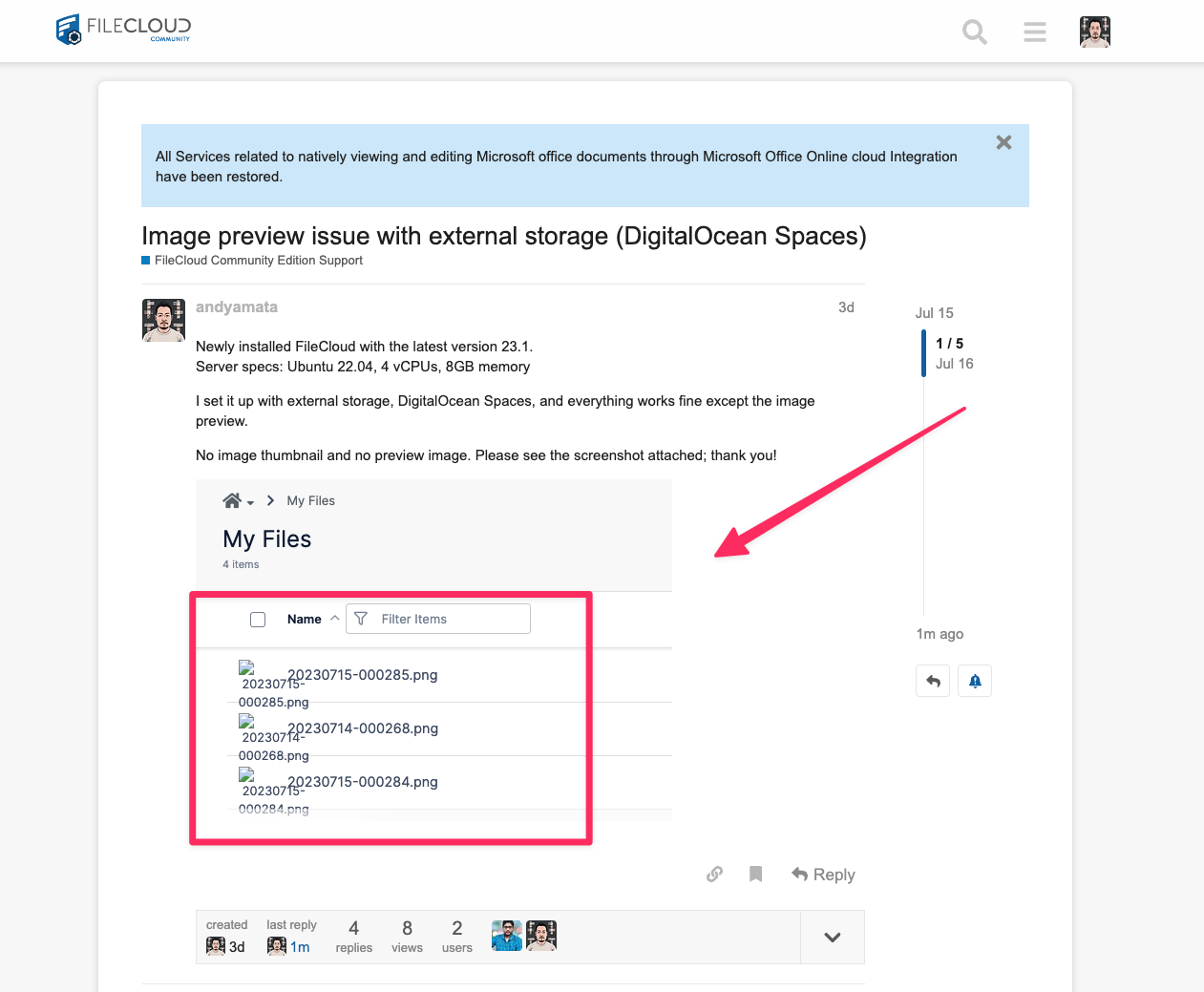
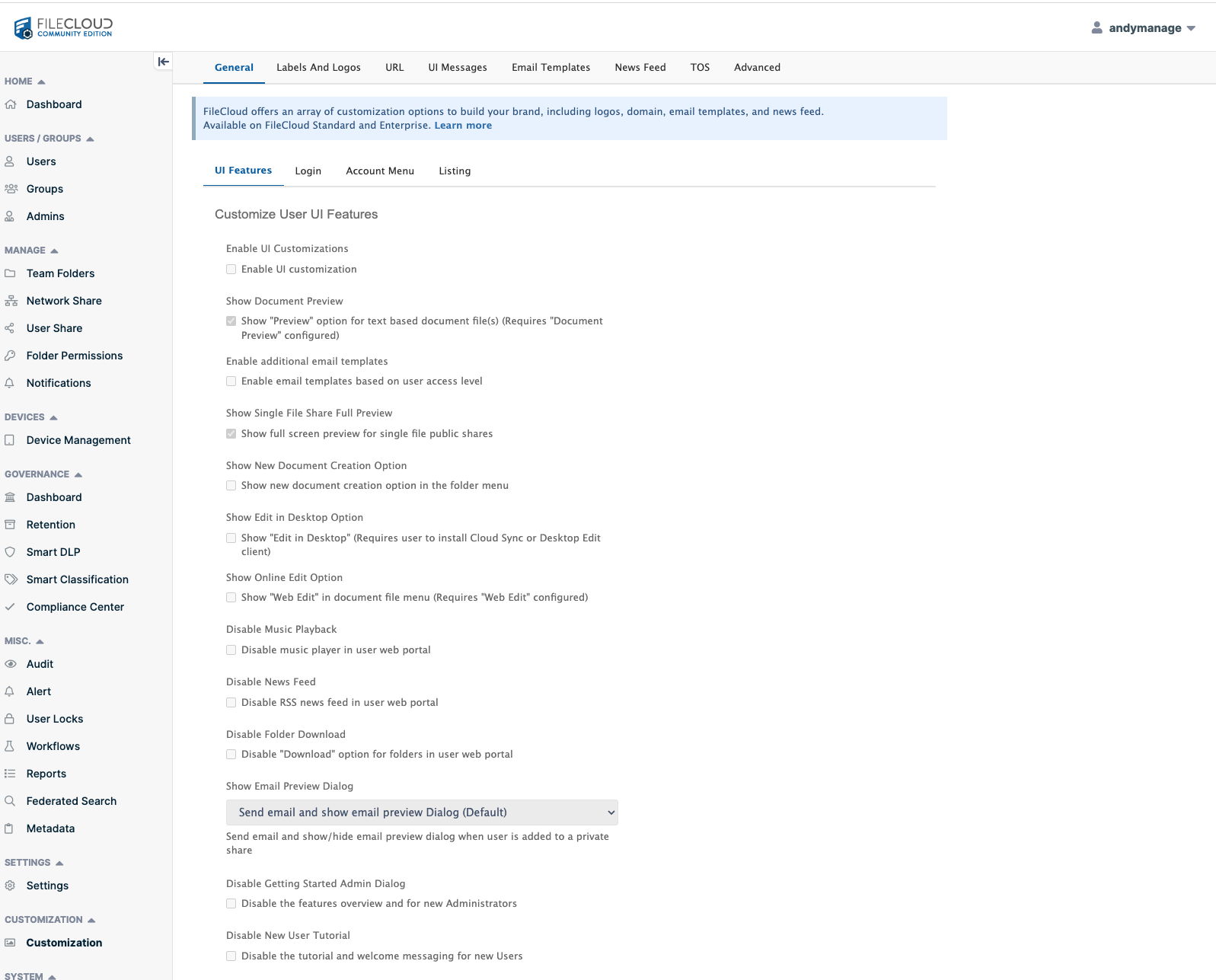
Newly installed FileCloud with the latest version 23.1.
Server specs: Ubuntu 22.04, 4 vCPUs, 8GB memory
I set it up with external storage, DigitalOcean Spaces, and everything works fine except the image preview.
No image thumbnail and no preview image. Please see the screenshot attached; thank you!
Hi @andyamata
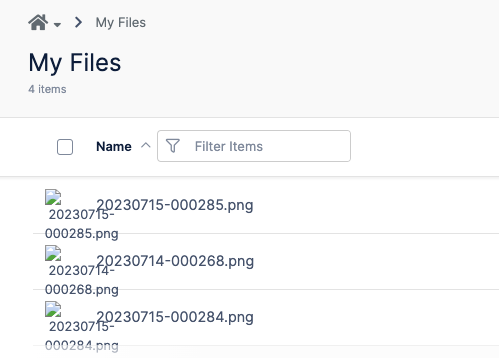
Could you please confirm the Show Document Preview option is enabled. This can be confirmed as follows:
Admin Portal > Customization > General > UI Feature > Show Document Preview option should be enabled i have attached the screenshot for your reference
Fore more details you can refer to the below Document i have included.
https://www.filecloud.com/supportdocs/fcdoc/23.1client/server/filecloud-administrator-guide/filecloud-site-setup/document-settings/setting-up-document-preview/document-preview
Please check if the below service is enabled and running in your FC server.
service fcdocconverter status
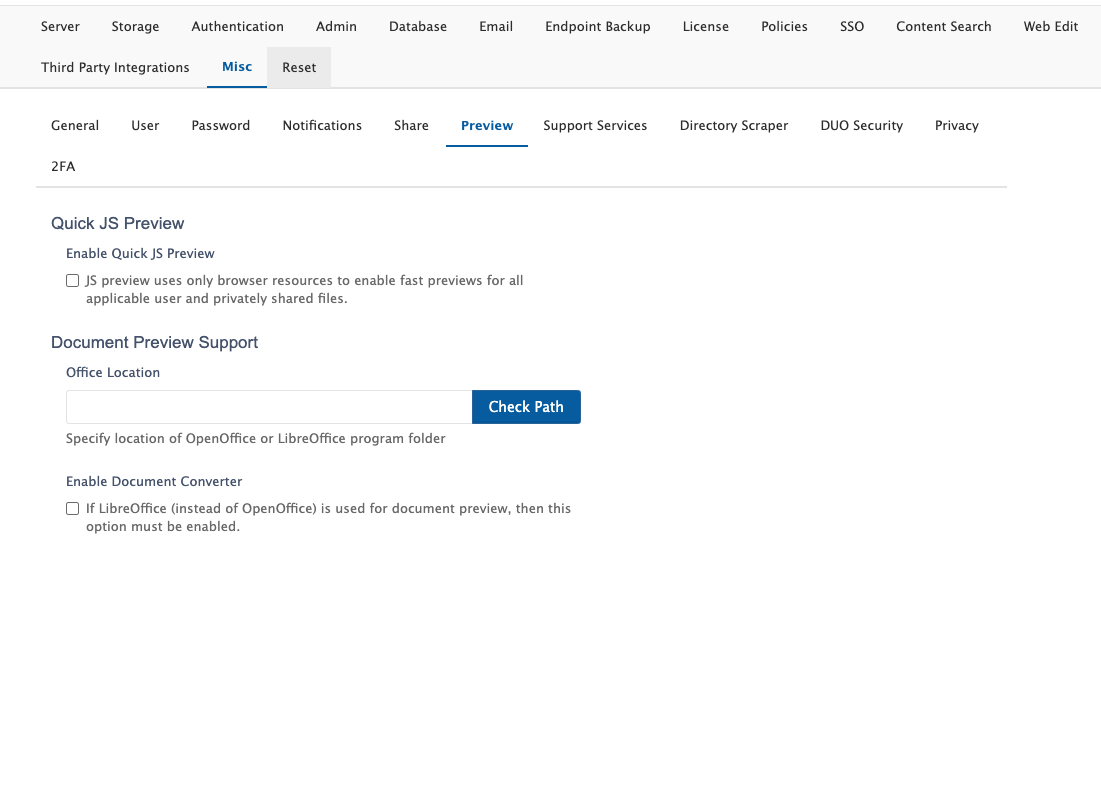
It looks like we don’t have those options like your screenshot.
The image preview works well with folders on local storage but not when replacing local storage with S3.
Image preview in folders on Network Shares connected with S3 buckets are also working ok.
So the only situation where it’s not working is the storage with amazons3 config.
Hi @andyamata
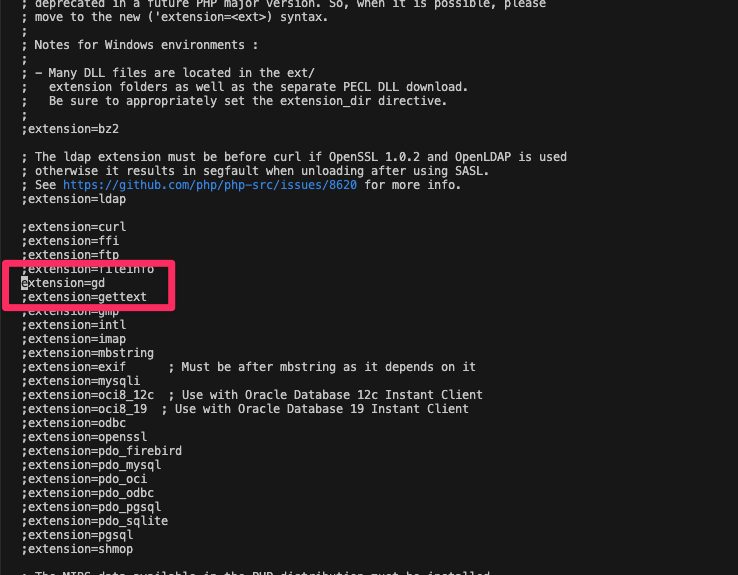
Coud you please try to enable the below line from the php.ini file by removing the ‘;’ save it and restart the webserver(Apache) and check again whether you can see the thumbnails
Path: /etc/php/8.2/cli/php.ini
;extension=gd
What error are you facing when previewing the images, can you share the prompted error screenshot?
After removing the ;extionsion=gd:
- The Network Share does not list our files.
- I’m unable to connect to S3 for the My Files storage.
- Not able to mount the FileCloud Drive from my computer.
Screenshots
My Files Storage
https://links.amata.agency/HLn0in
Network Share
https://links.amata.agency/JPZ6lo
Here’s the error when previewing the images.
Hi @andyamata
Appreciate the screenshots and videos.
Could you try by disabling the extension again with placing ; before and restart your web server?
Also can you confirm this issue is happening only with s3 or with normal network share also?
Here’s what happened:
-
I removed the ‘;’ from extionsions=gd → The result is still the same (no image preview).
-
There are four updates on Ubuntu 20.04.2, so I updated Ubuntu. After updating → Unable to connect S3 to My Files and Network Share. Screenshot: https://links.amata.agency/UblOjo
-
So I rolled back the backup, and now I have it up and running BUT still no image preview. Screenshot: https://links.amata.agency/wjspJ7
The #3 is the only issue having right now.
Hey @andyamata
what was the version after updating your ubuntu version from Ubuntu 20.04.2 and your current ubuntu version after roll back?
The Ubuntu is still the same version 22.04 but there are 4 minor updates showing. It was an update not an upgrade. I rolled back to my backup before the 4 minor updates but it’s still 22.04.
Hi @andyamata
Thank you for the info.
We will check this internally and will let you know.
Hi @andyamata
Thank for your time.
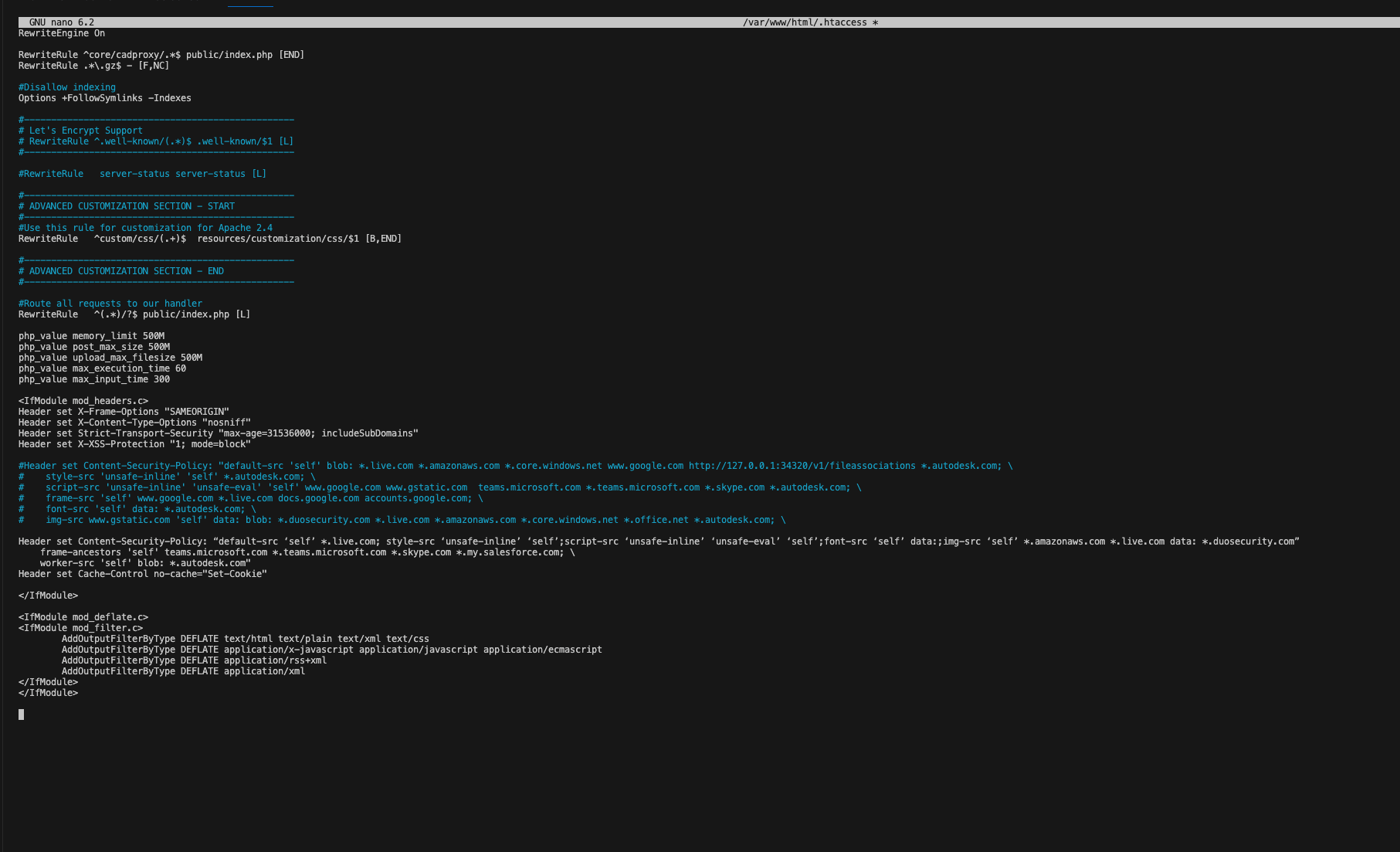
Please add the below line in the file /var/www/html/.htaccess and restart the apache service and try previewing images.
Header set Content-Security-Policy: “default-src ‘self’ *.live.com; style-src ‘unsafe-inline’ ‘self’;script-src ‘unsafe-inline’ ‘unsafe-eval’ ‘self’;font-src ‘self’ data:;img-src ‘self’ *.amazonaws.com *.live.com data: *.duosecurity.com”
For more details you can refer to the below document under Troubleshooting section about “How to Correct Issues with Image Previews”
Thanks for the code.
I added to the .htaccess file and restarted the Apache, but it still doesn’t preview the image.
I added it at the bottom of the file. Is that the correct location?
Hi @andyamata,
Kindly apologies for the delay.
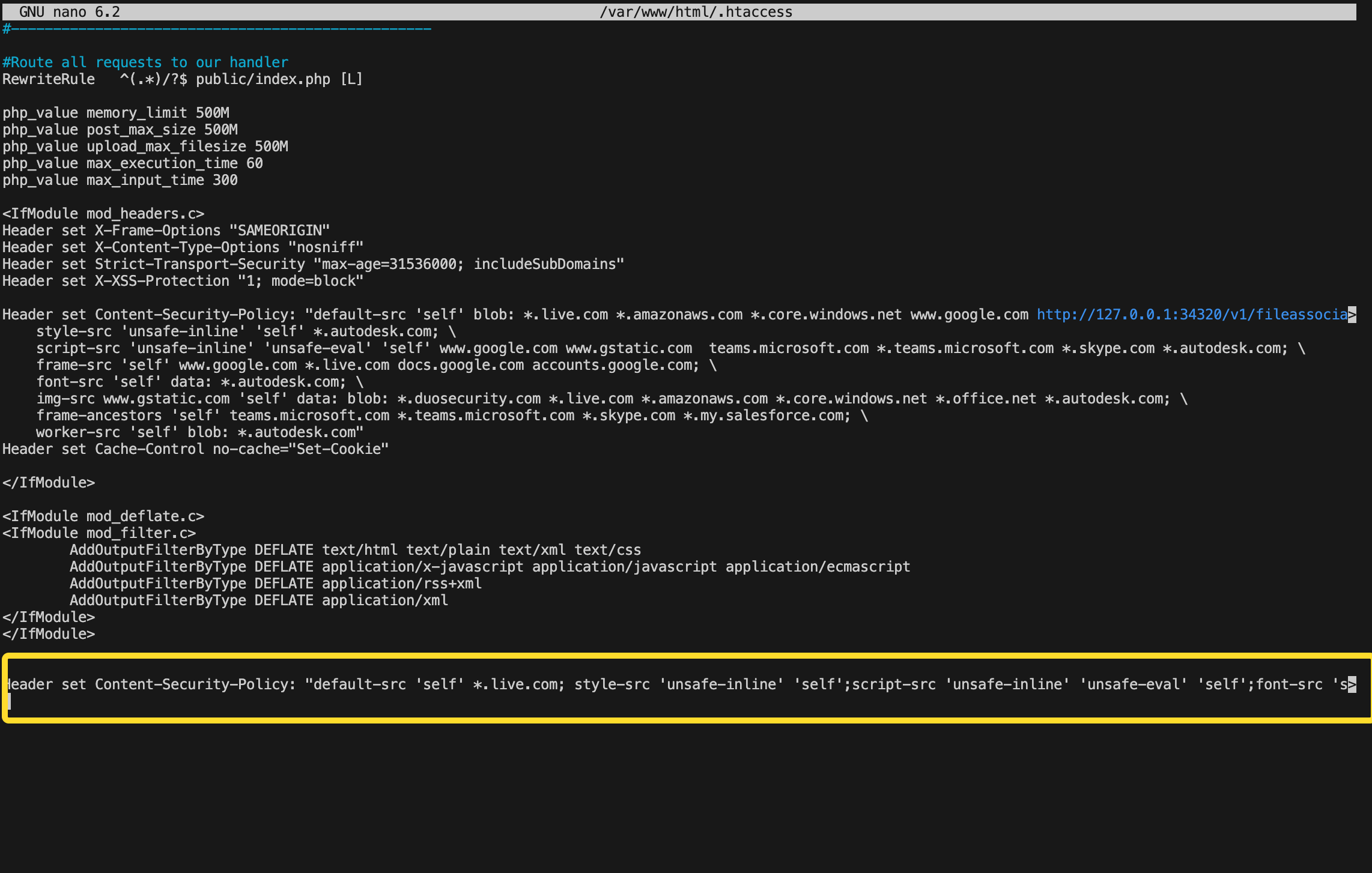
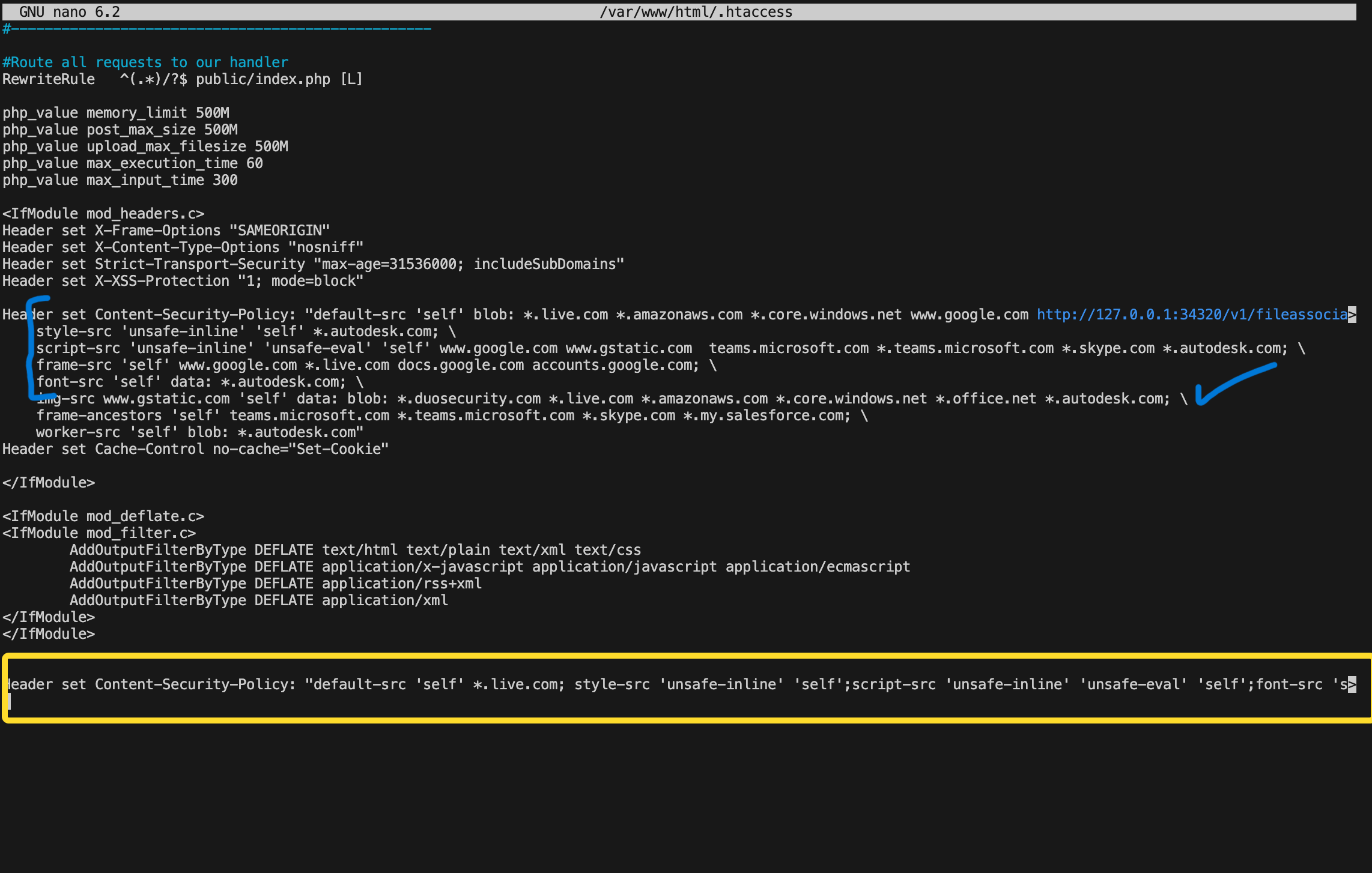
Please replace the marked 6 lines starting from Header set Content-Security-Policy till img-src line *.autodesk.com; \ with the following line
Header set Content-Security-Policy: “default-src ‘self’ *.live.com; style-src ‘unsafe-inline’ ‘self’;script-src ‘unsafe-inline’ ‘unsafe-eval’ ‘self’;font-src ‘self’ data:;img-src ‘self’ *.amazonaws.com *.live.com data: *.duosecurity.com”
Then restart the apache service then give a try to preview the image.
Happy to help
It returns 500 Internal Server Error
Hi @andyamata,
Thank you the update.
We will check the code with our team and update you regarding with it.
Can you kindly try to revert the changes made in .htaccess file then restart the Apache Service in order to test the following way?
Kindly make sure that Document Preview and Document Converter has been configured correctly.
FileCloud requires LibreOffice to install and run Document Converter. If you are not sure if you have installed the latest version of LibreOffice that FileCloud is using, enter the following command, which checks the LibreOffice version and upgrades it if necessary:
filecloudcp --libreoffice-check
To install Document Converter, enter the command:
filecloudcp --install-preview
Then kindly follow the below steps to enable document preview in FileCloud.
- Log into Administration Portal
- Click on “Settings” on the left navigation panel
- Click on “Misc” Tab
- Click on “Preview” Tab
- Enter the path to the LibreOffice program folder.
- Click on “Customization” on the left navigation panel
- Click on "General Tab
- Check the “Show Document Preview” checkbox
You can view the above configuration here: LibreOffice Ubuntu/CentOS Instructions - FileCloud Docs - Server
Also kindly have a look at the following doc to find more details on Document Preview:
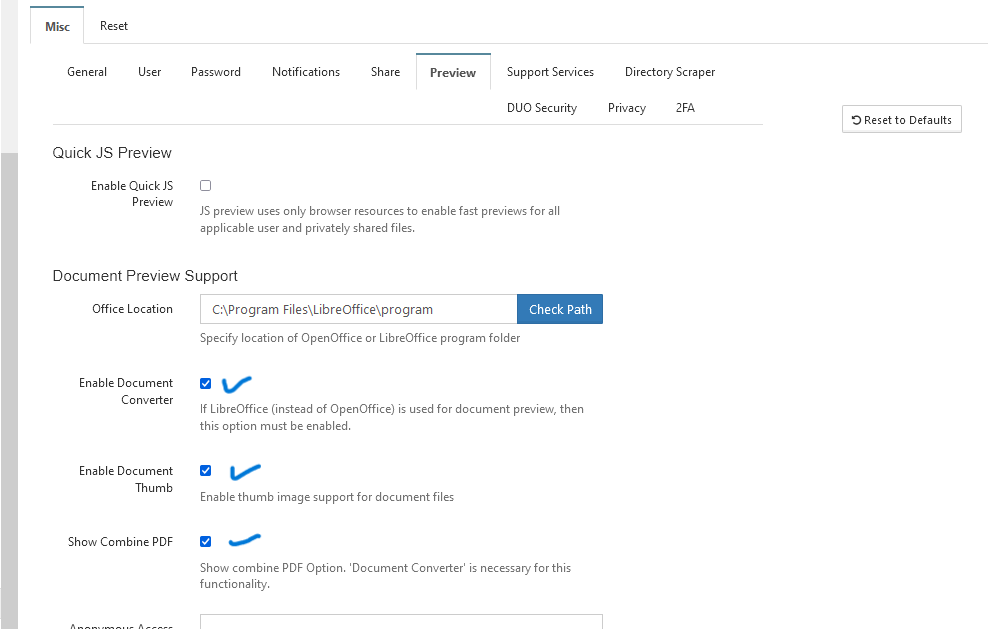
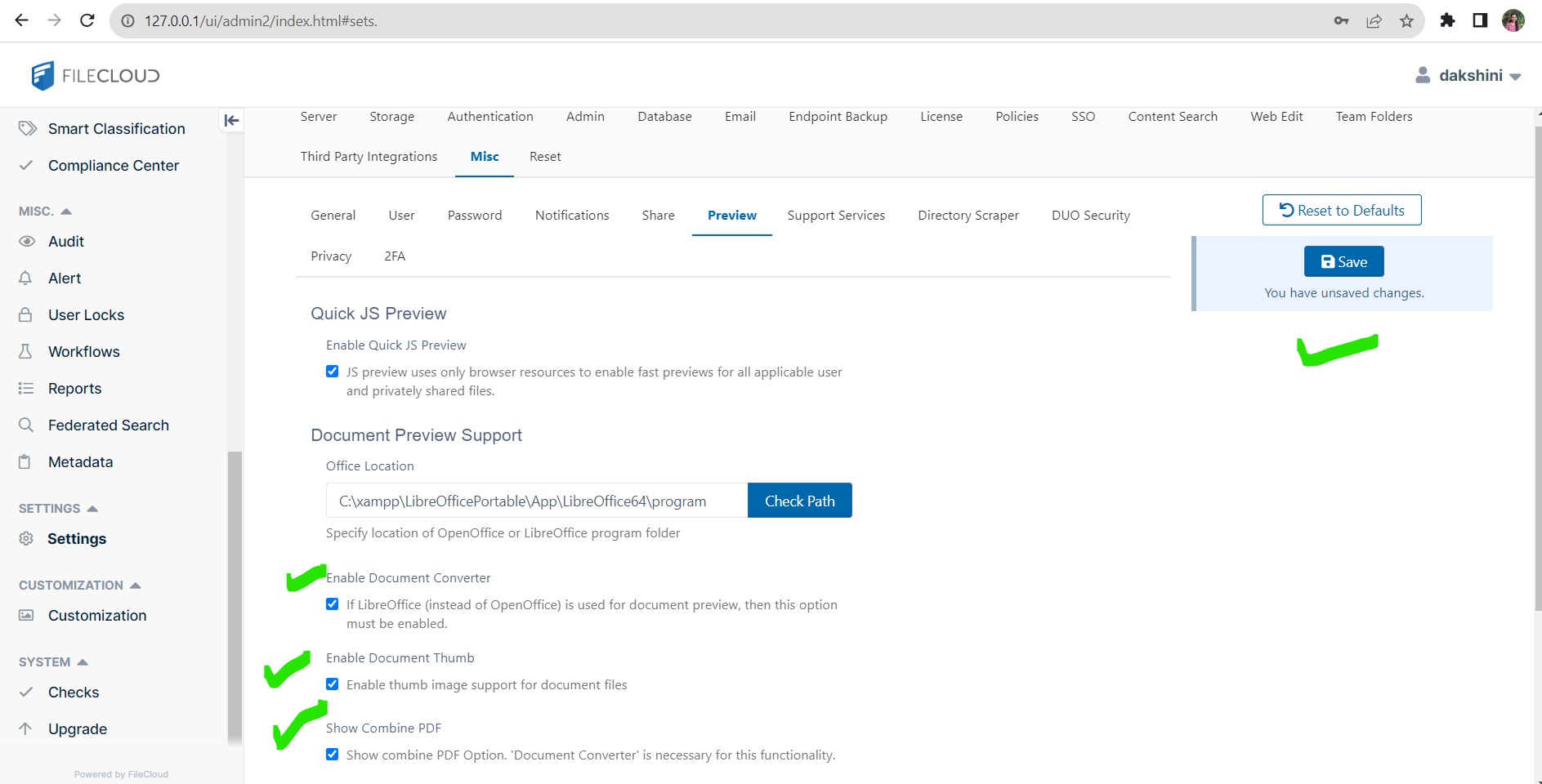
Then kindly try to login into your Admin Portal > Navigate to Settings > Misc > Preview > Then enable the option Enable Document Converter > Now you should be able to see the Enable Document Thumb and Show Combine PDF kindly enable both of these options and then save the changes as shown below.
You should be able to see these options once you enable the Document Converter
Then try to check the Thumbnail images again.
This has been explained in detail in our following documentation:
Try to complete all the above steps one by one. Try not to skip any steps. If you find any difficulty kindly reach out to us. We are here to help you out.
Still doesn’t work.
I think you need to try with Linux server not on your local computer. They’re different environments.
By the way, I can add only one image to the post, so it’s difficult for you to understand the bug issue.
Hi,
If you wish to upload multiple screenshot then kindly upload it here.
https://zerg.codelathe.com/url/fnzc2ybbnxim4nhg
Also provide us with the following details:
- Please provide us screenshot of the Preview option enabled in Admin Portal > Settings > Misc > Preview as guided in the previous response so that we can verify if everything is set correctly.
- Apache webserver log
- FileCloud server log
Apache log from the following path Linux: /var/log/apache2
Please reproduce the error again with server logs in debug mode.
To enable debug mode, open the Admin Portal, go to Settings->Log Level, and set it to “DEV”.
Then please replicate the issue and send us the logs.
Please download the logs in FileCloud Admin Portal → SYSTEM → Checks → Generate Logs.
Linux: /var/www/scratch/logs/log_YYYY-MM-DD.txt (in Ubuntu 14.04 and later
          /var/www/html/scratch/logs/log_YYYY_MM_DD.txt)
I don’t see a sign that this is going in the right direction to the solution. Just forget it.
Hi @andyamata,
Apologies for the delay. We can understand your concern.
To further troubleshoot we will need to check the logs and also need the requested details in the previous response.
We will be waiting for your update on this.