I have installed Filecloud Drive on my laptop. I open the drive and try to drag a file from my laptop to a new folder that I have created. I get an error that says not enough space on the Filecloud Drive. I have a full TB of space. Please advise
I have the latest filecloud drive app and I am using windows 11.
Anyone, anyone
Is there anybody out there?
Can I get some help here please?
Hi @dwatson
Thank you contacting FileCloud support.
Are you able to upload the same using web portal ?
Yes, I can upload to the web portal with no issues.
Drive must set a size for the virtual drive. If the quota for the user is set to 0 (unlimited), then 15GB is used as default.
If you want to upload larger files you have to adjust the size of the virtual drive.
Please choose one of these two solutions:
1a) set Drive size in local config file
Edit the file C:\program files (x86)\FileCloud Drive\service\config.xml in your PC and you will be able to find a similar configuration value in the file.
15
Please set this to a higher value of 100GB as an example or a value as per your requirement.
100
Then please make sure you have removed the comment out for this configuration by removing “” from before and after the configuration parameter. Once the changes are saved please restart the FileCloud Drive.
1b) set Drive size in central device managmeent
This parameter can also be set in the central device management, example:
<xml>
	<winclouddrive>
		<drivedefaultstorageingb>36</drivedefaultstorageingb>
	</winclouddrive>
</xml>
2) change user quota
If the quota for the user is not 0 (unlimited), then this value is used as the size for the virtual drive → set a high quota instead of unlimited.
I will look at this later today, although I am pretty sure I set this for unlimited. And the files that I am trying to upload are not even close to 15 GB. Plus if this is supposed to be be install and use, why do we have to go into the settings like this just to upload files that this is already supposed to do?
Hi @dwatson
FileCloud Drive cannot be set to unlimited as File explorer wont support the unlimited space shown below
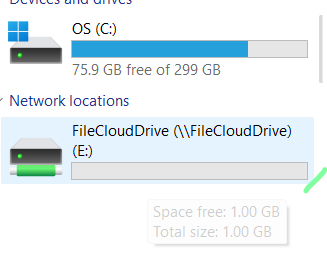
It is always recommended drive should have size, kindly make the change as per the previous response by stefan and let us know.
Ok, It won’t let me save the file after I change it. How can I send you a screenshot?
Hi @dwatson
You can send the screenshots on the below link
Also share drive logs from the below path you can open the run and paste it hit enter.
%APPDATA%\FileCloudDrive\data\
share both fcedc and FileCloudDrive files.
I have uploaded a screenshot. There is no folder labeled Fileclouddrive\data
Hi @dwatson
Thank you for the update.
Kindly increase it from 15GB to 20GB and see if it works if not then check the quota usage for the user.
Please login to the admin portal navigate to users under actions edit the which is currently using the drive and share us the screenshot.
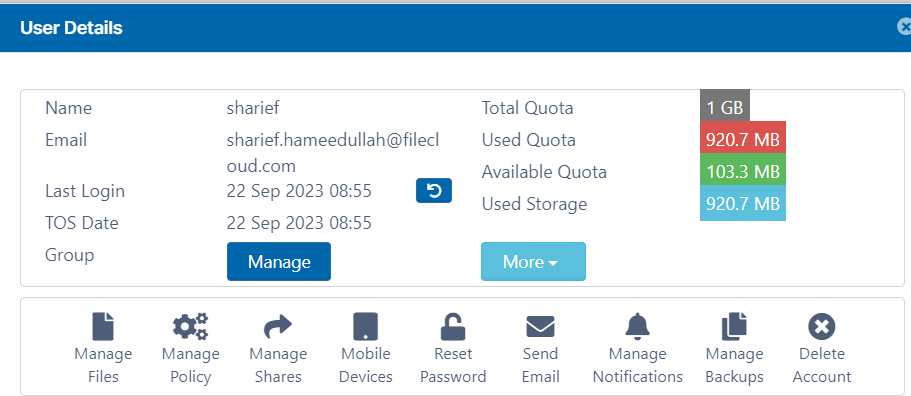
Logs can be found on the below path.
C:\Users\username\AppData\Roaming\FileCloud Drive\data
It was already 20 and I tried to make it 100 but it would not let me save the nano file.
So is that it? No further assistance?
Hi Dwatson
Can you please share the user quota usage details with us?
To further troubleshoot the issue we will require the FileCloud drive logs.
You can open the log folder from the Drive Dashboard: Settings → Get logs
Please send us the files fcedc.log and FileCloudDrive.log*
collect logs manually
To further troubleshoot the issue we will require the FileCloud drive logs.
Please send us the files fcedc.log and FileCloudDrive.log* from this location:
Windows: %appdata%/FileCloud Drive/data
Mac Drive: ~/Library/Application Support/FileCloud MacDrive2/data
I already sent you these logs
Hi
Thank you for the confirmation. We will check this for you and update you soon
Hi
Kindly try to replace config.xml file in the path C:\Program Files\FileCloud Drive\service with the attached config file and then give a try
That did not work. Look at the new png file called file size issue that i uploaded to your folder