Hi,
This might be more of a Linux question than a FileCloud question, but here it is.
I have installed a fresh copy of FileCloud CE on a ESXI 8.0 VM Machine (Dell R720) with a total drive capacity of ~100GB.
I’ve done this ‘small’ disk size because I just wanted to try out FileCloud and thought it should be pretty easy to expand the storage space.
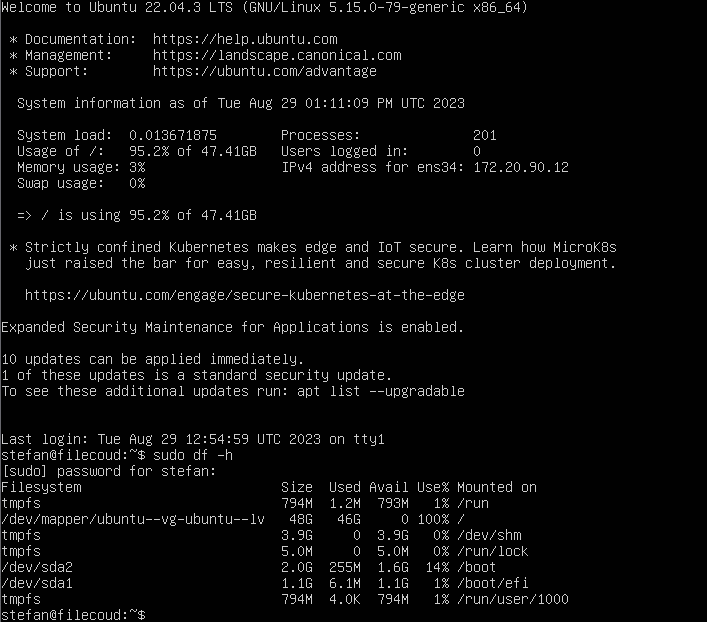
Now that I have copied some photo’s to it, as excepted the storage space is running critically low.
I have expanded the VM Drive capacity from 100GB to 5TB and rebooted the system.
However, I assumed that by increasing the storage on the VM, the root partition would also expand automatically. It seems it doesn’t.
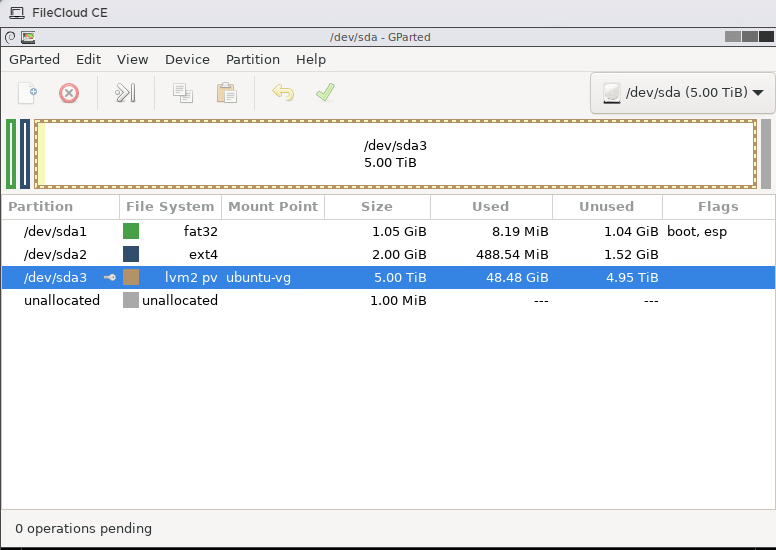
I have attached the screenshots from the FileCloud Console and a screenshot of GParted where I have tried to expand the partition of the Linux Root partition.
Here, I can see the /dev/sda3 partition is actually increased to 5TB but I still get the critical low disk space message.
Is there any other commands I need to invoke to use the extra space on my hard drive?
Since it is a fresh install and no critical files have been copied yet, I can also reformat everything and re-install FileCloud from scratch again, but I rather wanted to do it the correct way.
Also for the sake of goodness, if I might need to upgrade in the future again.
This seems to be issue with the OS not with the FileCloud path as it is out of scope. Kindly try to execute the command “resize2fs /dev/sda3” and check if it is still the same please check on the below link.
I ran into a similar issue. I had downloaded the latest FileCloud OVF template running Ubuntu 22.04. After deploying the VM to our VMware ESXi 7.0 environment, it only had a 50 GB drive. I wanted to expand it to 200 GB’s and had a hard time finding all the steps needed. I do very little with Linux, but here are the steps I found that worked for me. I would highly recommend taking a backup of your VM before making any changes.
Viewed current volumes lsblk
Expanded the drive in VMware.
Rebooted VM (may not be necessary)
Installed “Parted” to expand the partition sudo apt-get install parted
Expanded partition Parted Print(to display partitions. In my case, partition 3 was the one to expand) Resizepart 3
Yes to continue.
Enter new partition size, 200GB in my case Q(to quit out of Parted utility)
Extend size of LVM Volume
I then ran lsblk to display the current volumes, this time it showed the increased drive space, but the ubuntu—vg-ubuntu—lv volume used by FileCloud was still small. sudo lvextend -l +100%FREE /dev/mapper/ubuntu–vg-ubuntu–lv(this resized the volume using all free space available) sudo resize2fs /dev/mapper/ubuntu–vg-ubuntu–lv(This resized the file system to match the volume)
Now when I run lsblk, it shows the extra space available on the ubuntu–vg-ubuntu–lv volume.
I rebooted once more for the fun of it, and then signed into the FileCloud Admin page. It now displayed the additional space.