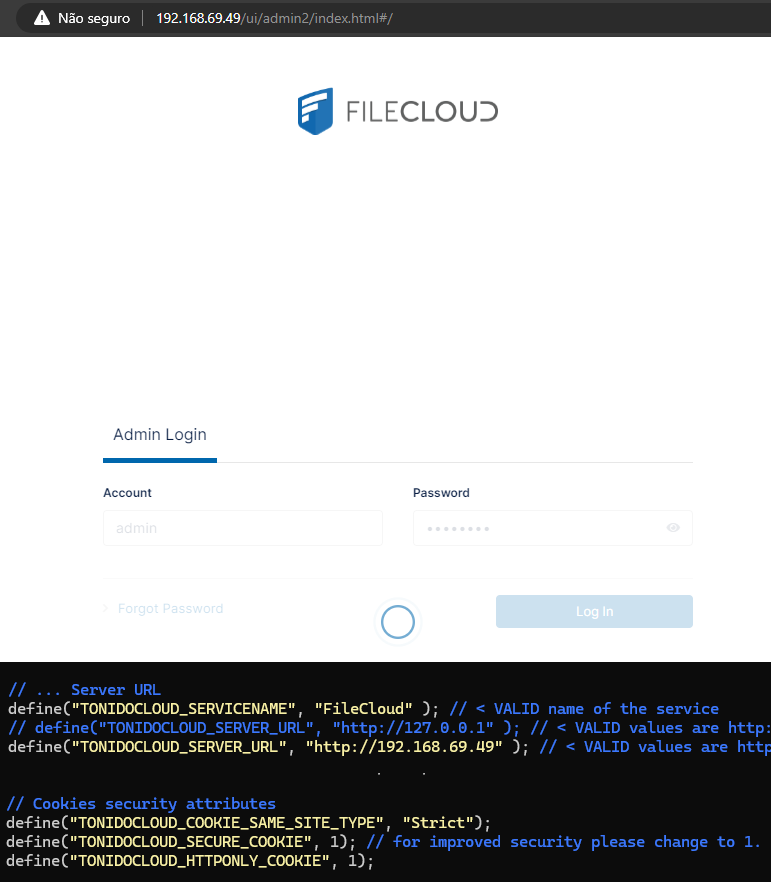
I’ve just setup the latest version available, on a fresh Ubuntu server 22.04 LTS, installed on an EXSi VM, following all the instructions available.
Filecloud passed all the install Basic checks and only failed Secure Cookie Setting, with the error : Secure cookie setting (TONIDOCLOUD_SECURE_COOKIE) is used without HTTPS protocol
I’ve tried changed the file /var/www/html/config/cloudconfig.php, changing the variable define("TONIDOCLOUD_HTTPONLY_COOKIE", 1);, as seen here in the forum and FileCloud docs, between 0 and 1, but with no succces.
I can’t login to the admin portal, either with the setting 0 or 1. when I try to login to admin, the screen keeps the blue circle popping out, but doesn’t go through the login screen.
I’m not logging at http://127.0.0.1 because I’ve installed FileCloud on a server, so I’m trying to login over server’s IP address, in the case http://192.168.69.49.
Also I’ve tried to change the "TONIDOCLOUD_SERVER_URL" to the server IP address, but with no avail also.
It looks like nothing happens when changing the file, even when rebooting the server.
Although I don’t want to publish Filecloud to the internet, I’ve put the server behind my NGINX server so I can have a certificate and https enabled.
Then, from outiside, I was able to login to Admin Portal and start to configure Filecloud.
But, as I wrote before, I don’t want Filecloud publicly exposed, and although I can access from outside, I still can«t access from local network.
This makes me suspect that this must be something related with https on the local network, but I don’t know how to solve this, because the define("TONIDOCLOUD_HTTPONLY_COOKIE", 0); (or 1) on the config file, have the same behavior.
Can someone lead me to a solution? Thanks in advance.
Thank you for contacting the FileCloud Support Team.
To further troubleshoot the issue we will require the FileCloud server logs. Please enable debug mode, (by opening the Admin Portal, go to Settings → Log Level, and set it to “DEV”). Then, once the log level is set to DEV, please replicate the issue and send us the logs. You can download the logs by logging into your FileCloud Admin Portal → SYSTEM → Checks → Generate Logs.
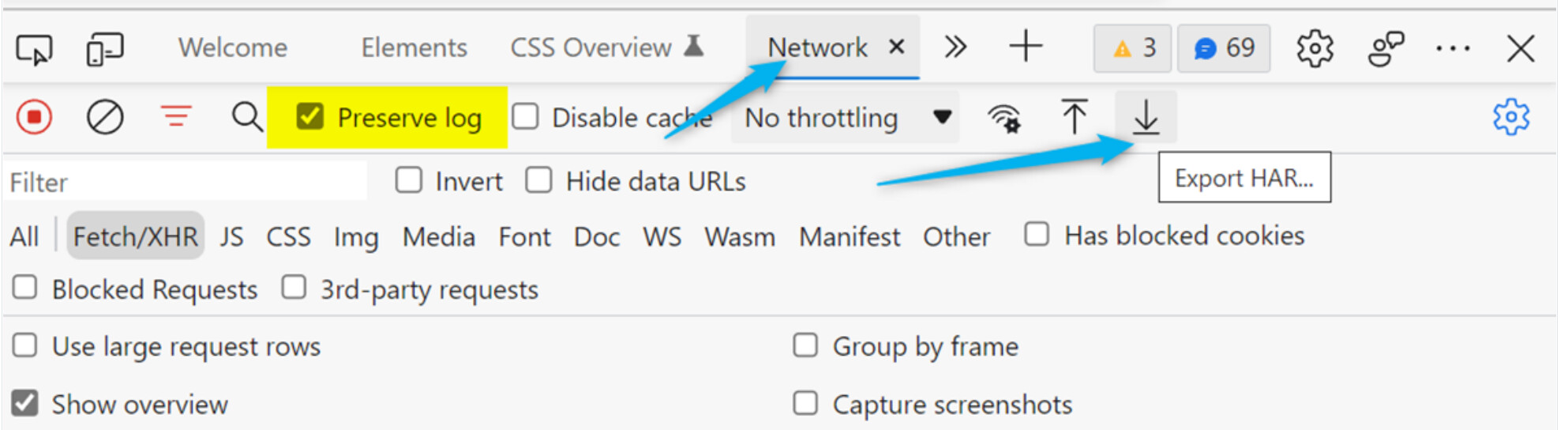
Can you also please record the actions in a HAR file in the browser and provide us with the file:
Login to FileCloud User or Admin Portal
Start developer tools in the browser
Press the key combination " ctrl+shift+i or three-dot-menu → more tools → developer tools, click on ‘Network’ and activate ‘Preserve log’
Do a refresh (F5)
Try to reproduce the issue( If possible, the same way the user was copying the direct links as before)