Hi
i have:
- FileCloud server in a DMZ (Win 2k9 workgroup)
- Active directory Server in LAN (Win 2019); i have actived Certificate server for LDAP ssl access; wth powershell utility ldp.exe, i connect successfully to AD
I have tested any configuration for active AD authentication, but not work.
Port 389, 636 + ssl
User: domanin\administrator (admin of SRV AD), administrator@xx.local
ecc
noting; result connection error or ‘AD Access failed. Check if provided AD account name is part of Limit Login into AD group’
Any idea?
thank’s
Hello @gestione
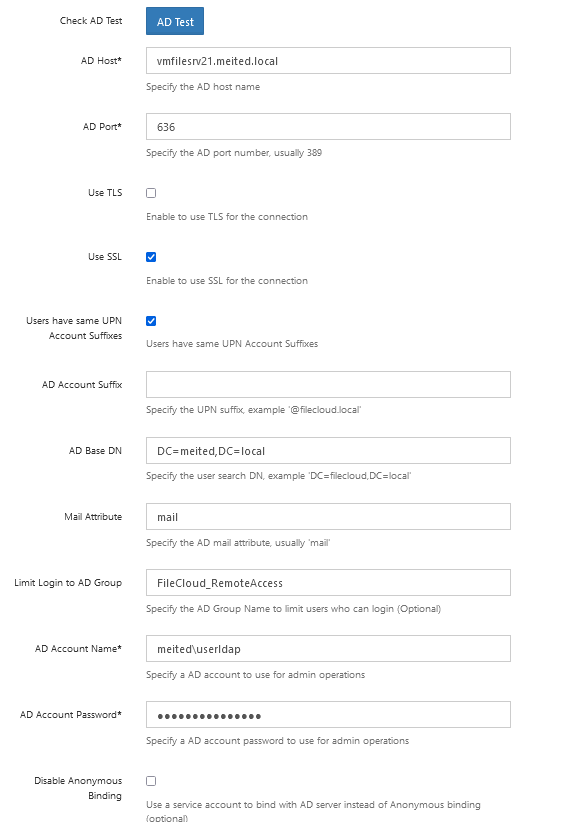
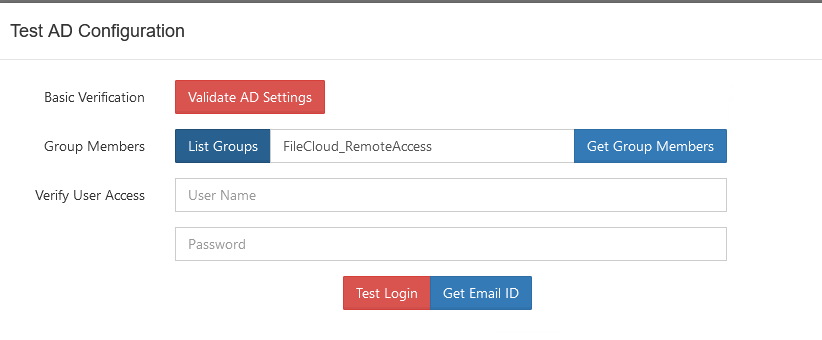
Please update us with a screenshot of the Admin Portal > Settings > Authentication > Active Directory tab.
PS An server AD, users “userfcloud” in member of FileCloudRemoteAccess (user for limit access o group)
With that configuration, in other company wok fine (i use only ldap 389)
In this instllation, NOT work wth 389 and 636 configurations…
Hello @gestione
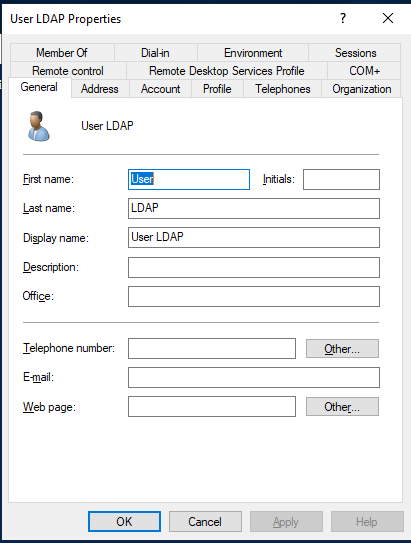
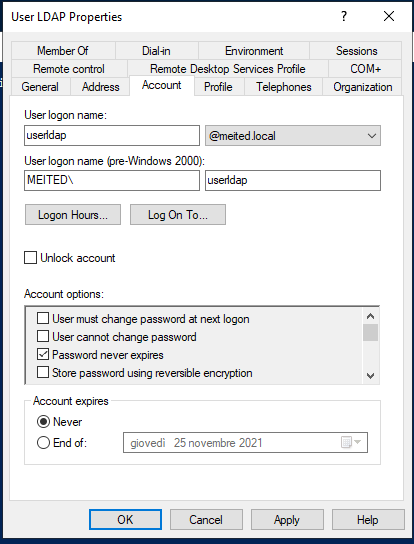
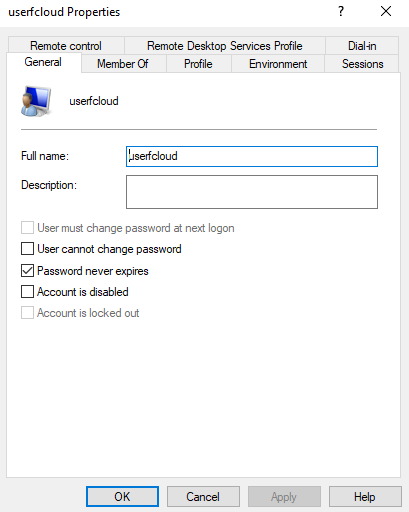
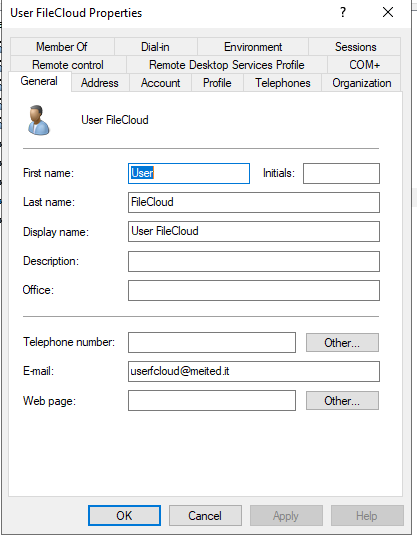
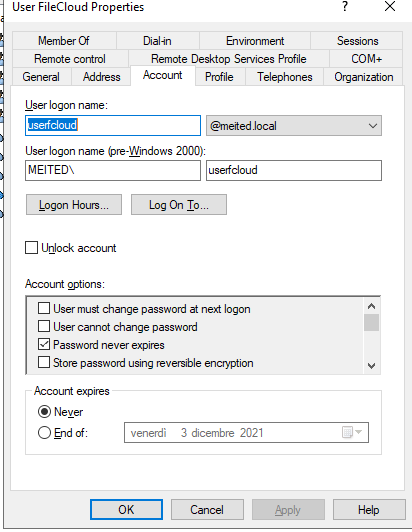
Please update us with the screenshots of the user’s (userldap) properties from AD (General and Account tabs).
for test, on server AD, i use powershell command ldp.exe
I connect to AD with user utenteldap with success on 389 and 636
thank’s
Hello @gestione
Please make the below changes in the FileCloud server AD settings.
AD port: 389
AD Account Suffix: @meited.local
AD Account Name: userldap
And on the AD server " userldap " properties, assign an email address to this user.
After these changes, please test the AD connection.
If the issue persists, please remove “Limit Login to AD Group” and recheck the connection.
WOW, works!!! with limit group also! Top!
The problem is email address on AD?
NOTE:
1 if i test group members, result ONLY user that email filed is set, other no
2 with 636 ssl port not work… i would like use 636 ssl port…
Now sync group is ok, i access to fcloud user webpage correctly, but not can open share.
if i set network share ‘TEST’:
- with ‘DEFAULT’ permission, i view TEST share and all subfolder/subfile
- with ‘NTFS’ permission, i view TEST share only, but result error if i click on share name
LDAP authentication is set fo access to share folder with ntfs permission…
i have test it change permissione on share in AD: read write, full , ecc but result same error ‘Couldn’t get file list’…
Hello @gestione
Yes, the user accounts and AD connection accounts need their email addresses on the AD profile.
For using AD with SSL, please try the below steps.
- Please create a new folder c:\openldap\sysconf\ and c:\openldap\sysconf\certs, place your CA cert from the AD server in this location.
- Then create a config file c:\openldap\sysconf\ldap.conf. ldap.conf file should contain the below configuration, where you need to replace $YOUR_CERT_NAME with your CA cert name.
TLS_REQCERT allow
TLS_CACERT “c:\openldap\sysconf\certs$YOUR_CERT_NAME”
TLS_CACERTDIR “c:\openldap\sysconf\certs”
For Network Shares with NTFS permission.
Please check and make sure the apache and helper services are running with a logon account with full permissions to the Network path.
Please refer to the URLs below for more details on this.
https://www.getfilecloud.com/supportdocs/display/cloud/Network+Folders+with+NTFS+permissions
https://www.getfilecloud.com/supportdocs/display/cloud/Guide+to+FileCloud+Network+folders+with+NTFS+Permissions
Hi
after many test, access to share not works.
In AD server:
- i created user userfclud@meited.local (or meited\userfcloud)
- i share a folder with full access (folder and subfolder) to userfcloud
In filecloud server:
- i created user userfcloud with same password (this server is a WOKGROUP)
- i start service apache and filecloudheloer witn this account userfcloud
When i set new network folder, result problem with permission.
If i set on share folder full access to AutentcatedUsers or METED|users, WORK, but if i set only user userfcloud no…
User userfcloud on FC server not ‘match’ with MEITED\userfcloud on AD… any idea???
Both server are Windows 2019 Std Eng…
Name share is ‘_Dati’; i test with ‘Dati’ and now access work… this is the problem??? mah…
Now the network share is created in FileCloud server but…
if i access on http page users:
- access on users on AD (query LDAP) work…
- but if i open network share, result error (couldn’t get file list)!! On folder in AD i test Everyone full access but not work… absurd…
NTFS permission not work, or not work fine…
NOw if i create new network share identical of already created not work!!
If i delete network share and recreated identical… not work!!
This version have problem with autentication on AD Domain. Sure
Hello @gestione
Please provide us the screenshots of the below detail.
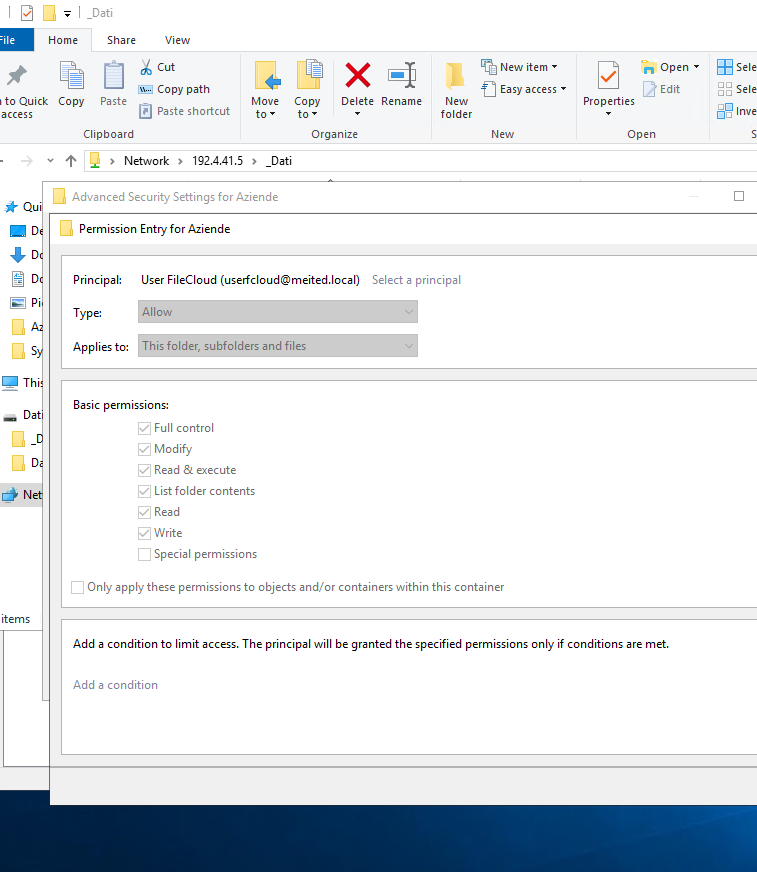
- NTFS permissions that are assigned to the apache logon user for the network path.
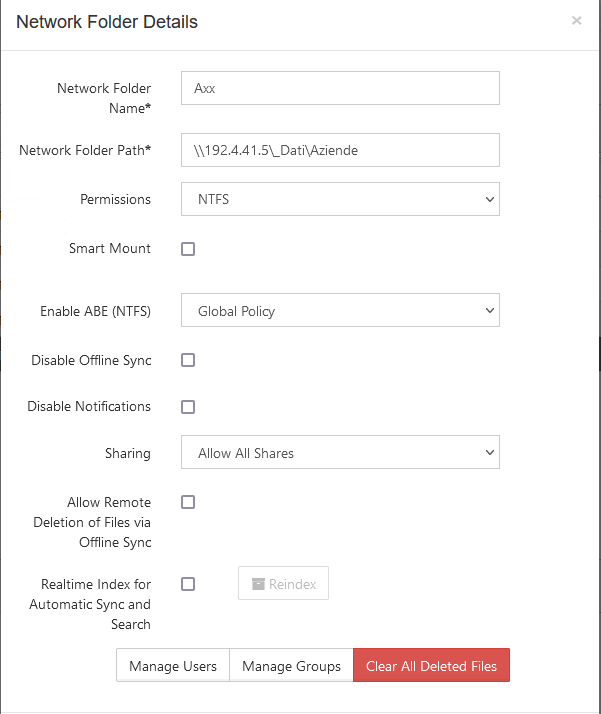
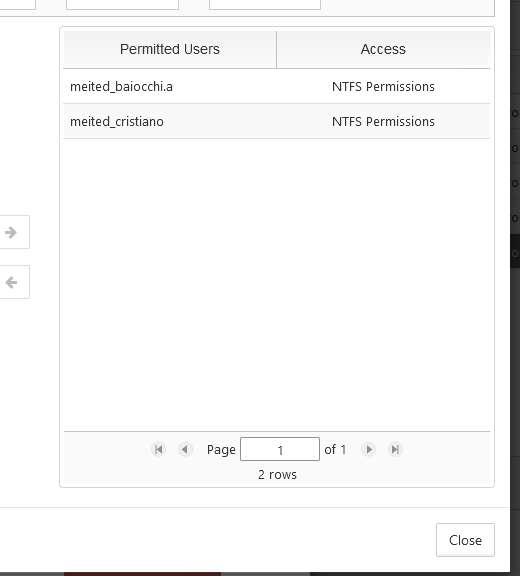
- Network share settings on FileCloud.
- Apache user properties from AD.
- The error user gets when trying to access the network share.
- NTFS permissions that are assigned to the apache logon user for the network path.
on FCloud server:
on ad:
-
Network share settings on FileCloud.
-
Apache user properties from AD.
User Filecloud:
User on folder share and subfolder:
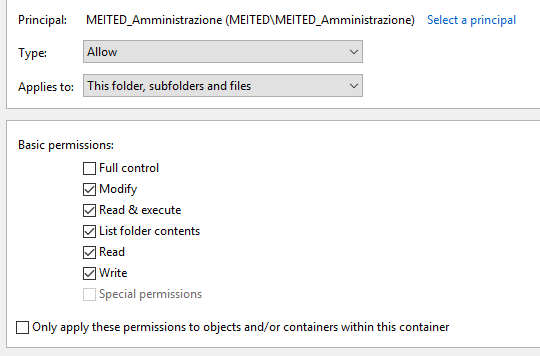
Share permission folder on AD is Everyone FullAccess
- The error user gets when trying to access the network share.
after access, user view correctly folder
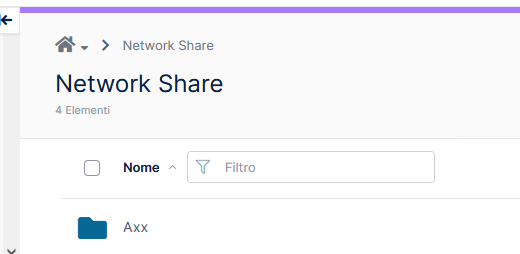
but result error if click
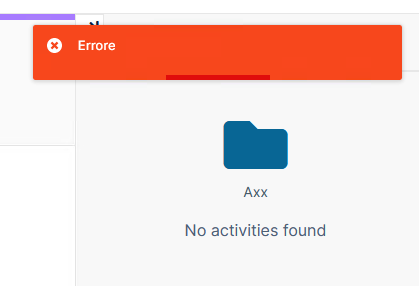
Hello @gestione
To assist you better on this, we need FileCloud server logs.
Please share with us the FileCloud Log from the server after setting the LOG level to DEV. You can do this by navigating to Admin Portal > Settings > Server > Log Level.
Once the log level is set to DEV, try to reproduce the issue and send the logs. You can find the location of the logs as follows.
Windows: \xampp\htdocs\scratch\logs\log_YYYY-MM-DD.txt
Example: C:\xampp\htdocs\scratch\logs\log_2020-06-27.txt (Select the latest date)
For a tenant site: C:\xampp\htdocs\scratch\logs\tenantsite\log_2020-06-27.txt
Linux: /var/www/scratch/logs/log_YYYY-MM-DD.txt (in Ubuntu 14.04 and later /var/www/html/scratch/logs/log_YYYY_MM_DD.txt)
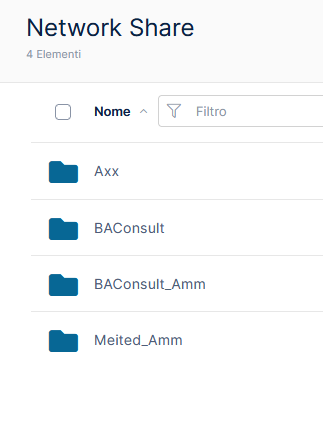
Users view 4 folder (network share):
first (Axx) is with NTFS permission (not work)
Other (with full access - NO NTFS Permission set) work