I have already enabled the options on the server side as per the document. While using the latest Android app, I enable Media Sync and tap to select a server. It searches for a valid backup server and then says no media sync capable servers found. Check if server is running and Media Sync is enabled in the server. Now as the document showed, I enabled Allow users to backup and allow camera backups in the endpoint backup settings and saved. I don’t know what else to try. I am running all of this on my local lan.
Please assist.
This is exactly the issue I had. Unfortunately the only fix for me was to literally uninstall everything and just outright reinstall FC:CE. Once I did that it worked. Good luck to you.
I have reinstalled this software multiple times and still nothing
I just now reinstalled everything with no change.
Any admin want to chime in here please?
Hi @dwatson
Did you enable the below settings from the Admin portal >> settings >> Endpoint Backup ?
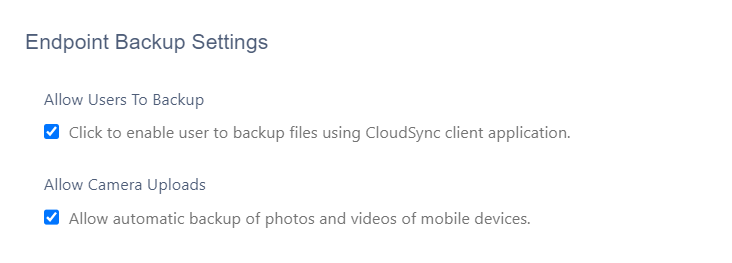
What is you Android version ?
What is your FileCloud android app version ? you can check from app menu >> settings >> Help & About
yes I enabled those settings
ver 23.1.01(239)
So i deleted filecloud and completly reinstalled from scratch. I can now see the backup folder in the android app, but when i add a file, nothing happens
Hi @dwatson
The data which you want to sync from your android device will be stored in the backup folder by default when you enable allow backups. For more details you can refer to below document.
Did you configured your android app for media sync selecting the source and backup server, can you send us screenshot of your FC app settings?
After adding file to backup folder in FC appp can you able to see it on web portal of that user which will be residing in MyFiles/backup ?
Ok, I see the 2 backup folders in my my web portal. one has a _gsdata folder in it that I don’t know what it is. The other backup folder is empty. I added a picture to the folder on my phone that I setup and it has not uploaded yet. It s only 2 mb. Does it automatically upload? Also, is there a way I can upload folders to the filecloud.
Ok, so it takes a while after I add files into my android folder to be uploaded into the backup folder on the filecloud. But I have copied a folder into that same android folder and it does not upload. Any reason why?
Hi @dwatson
The media sync is only meant to sync the images or videos it wont sync other file types or folders you can copy image into the backup folder and check FileCloud web portal it will sync.
Incase you want to upload folder to FileCloud you can create a folder into the backup folder by clicking ‘+’ button in your FC android app and check in FileCloud user portal.
Ok, So please explain a little more. I go into my backup folder on the mobile app. I add a new folder. How then do I get the files from the phone folder to the backup folder?
Is there anyone here that can assist with this question please?
Hi @dwatson,
There are a few different ways to upload a file or folder to FileCloud.
When you’re working in FileCloud, the easiest method is clicking the (+) sign that appears when you have a folder selected.
On Android, when you are working in another app, you can remain in that app and save a file in FileCloud. For more details see Saving Files from Other Apps to FileCloud.
You can also upload by tapping More.
Kindly refer to the following support doc for more details on uploading files or folders:
Also know that, Media Sync: To automatically upload media files (media sync) to FileCloud, see Media Sync/Photo Backup on Android.
In the navigation panel, a Sync button appears beside the Offline files link. Click the Sync button to synchronize your offline and online folders.
For more information about setting up offline folders and syncing files in Android, see Syncing FileCloud on Android.
Whenever you experience any issues, kindly share the device log with us. Sharing log information will help us investigate the issue and solve it promptly.
FileCloud allows customizing the client application (Mobile clients, Sync Clients, Drive client) policies. Please refer to the following support doc for more details on the update and configuration on these option:
Happy to help
When I click on a file, and share, it gives me the option to select FileCloud, but when I select a folder to upload, the FileCloud option goes away. I also put a folder in the backup folder on the phone to have that upload to the backup folder on the cloud server hard drive. It does nothing. If I put a file in the same folder, it automatically uploads it to the backup folder. None of your documents that you keep giving me links to have the info that I am asking for.
Hi @dwatson,
Let us check this for you. Kindly share the device log with us.
To retrieve app logs:
-
Go to Settings :
-
From the login page, tap the gear icon in the top right corner.
or -
After logging in, tap the triple-bar icon, and then tap Settings.
-
Scroll down and select Save app logs.
-
Select a destination on your device to save the log file
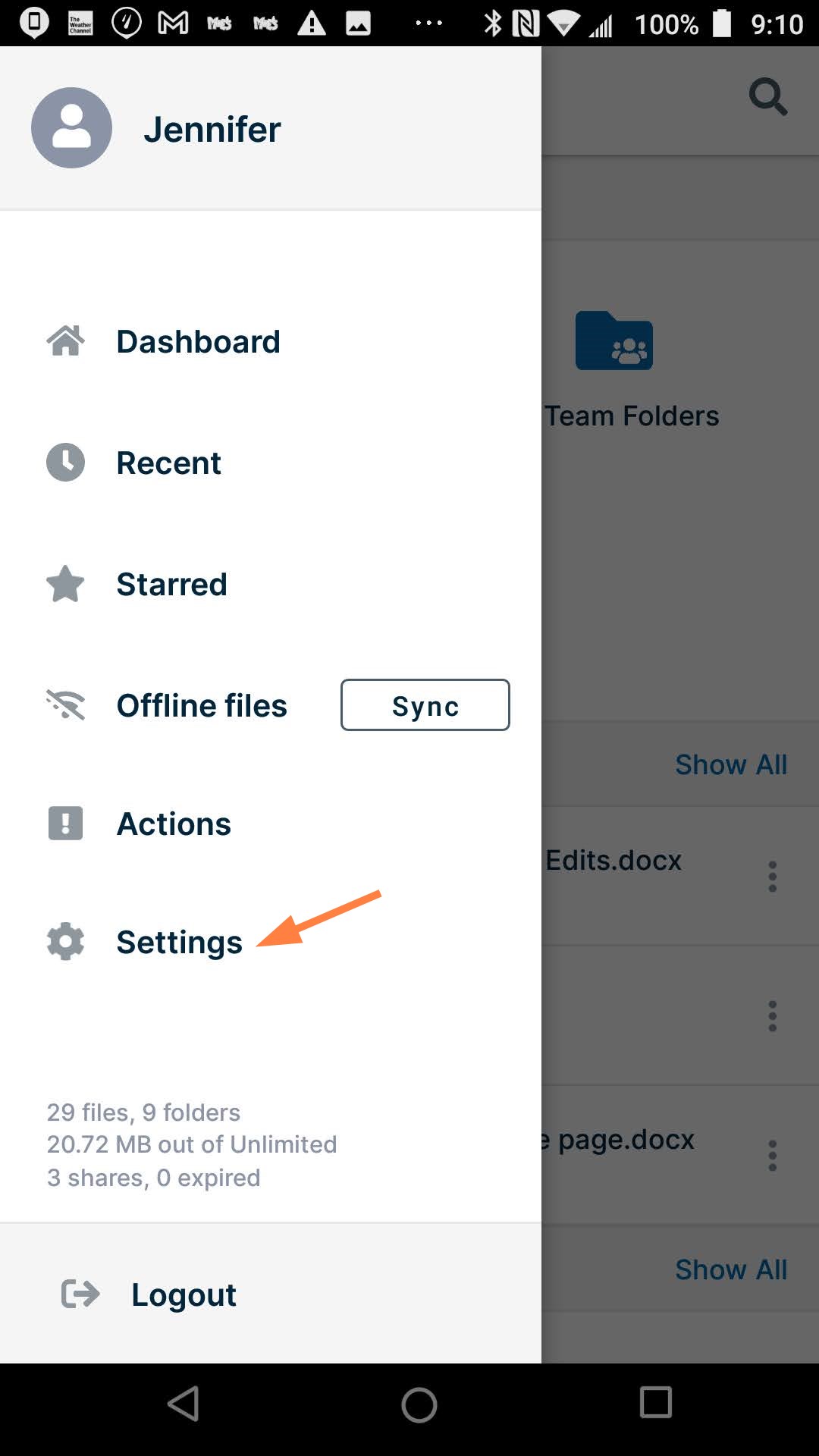
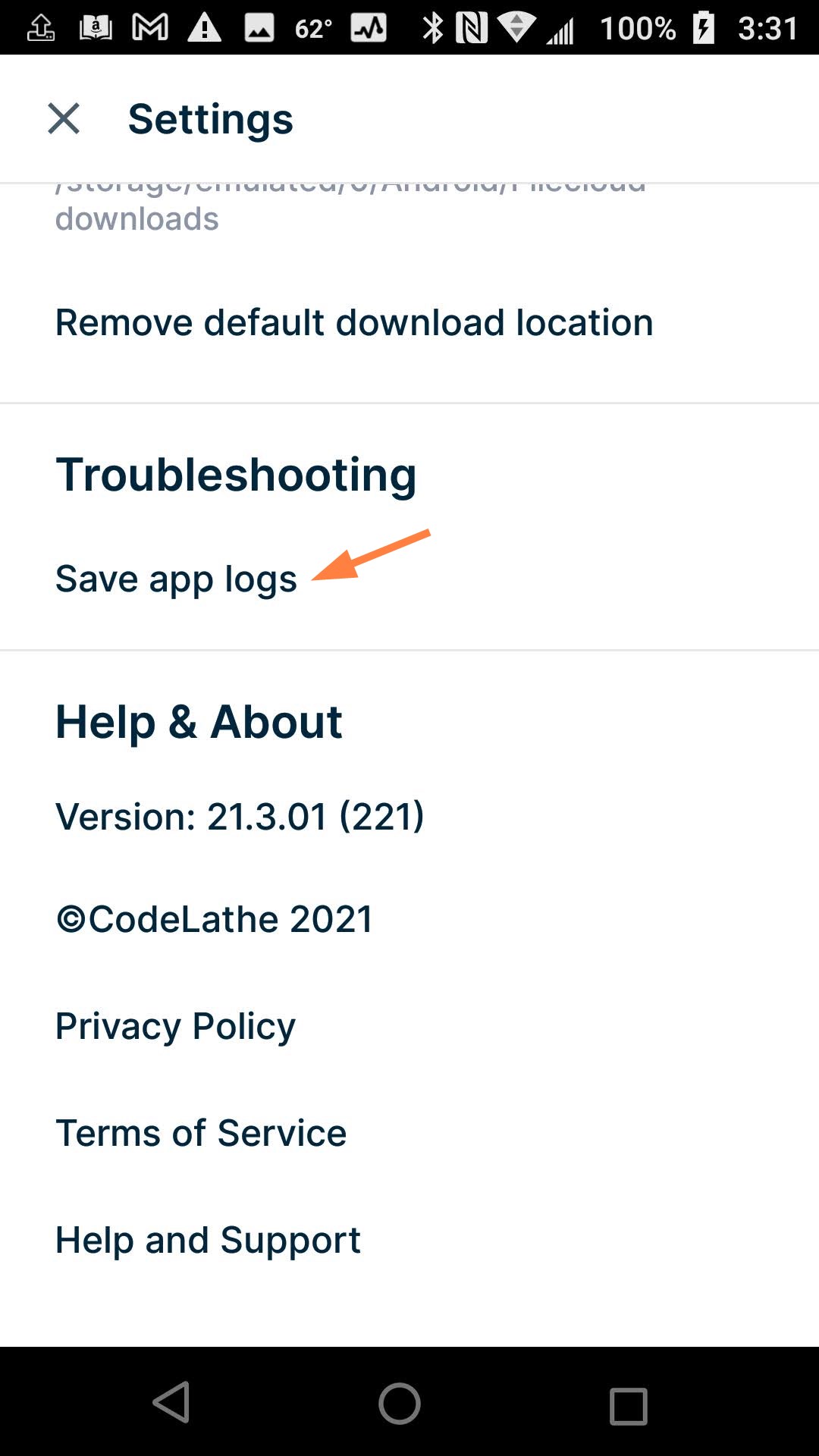
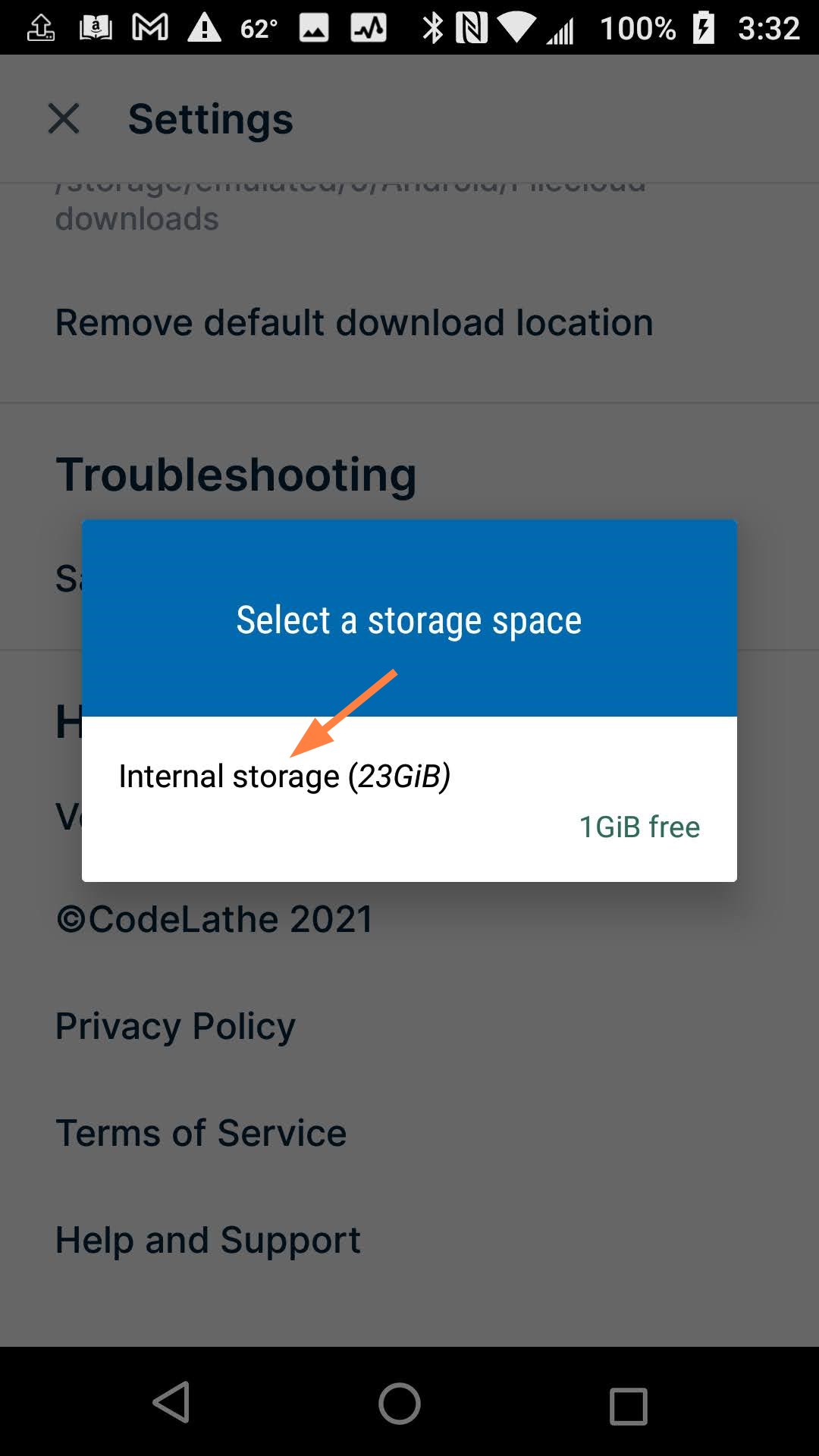
How do I attach the log file?
I have uploaded the log file. and also a screenshot of selecting a folder, selecting share and not seeing the filecloud option.
Hi @dwatson,
Thank you for the details.
Upon checking I could see that log file does not have any information in it. However upon checking the screenshot it looks like upload option has not been enabled. Could you please confirm this through Admin Portal?
Login to your FileCloud Admin Portal through web browser > Navigate to Settings > Go to Policies > Select the Active Default Policy > After clicking on edit policy go to Client Application Policy sub option > Then make sure to set NO for all the following options:
Disable ‘Edit’ functions in mobile client apps > NO
Disable all mobile client apps from connecting > NO
Disable ‘Download’ option in mobile client apps > NO
Disable ‘Share’ options in mobile client apps > NO
you can also set the remaining options to NO as per your convenience.
Then save the changes. Kindly find the attached screenshot for your reference on this. Also know that, these settings has to be managed from the Admin Portal which you can connect through the web browser.
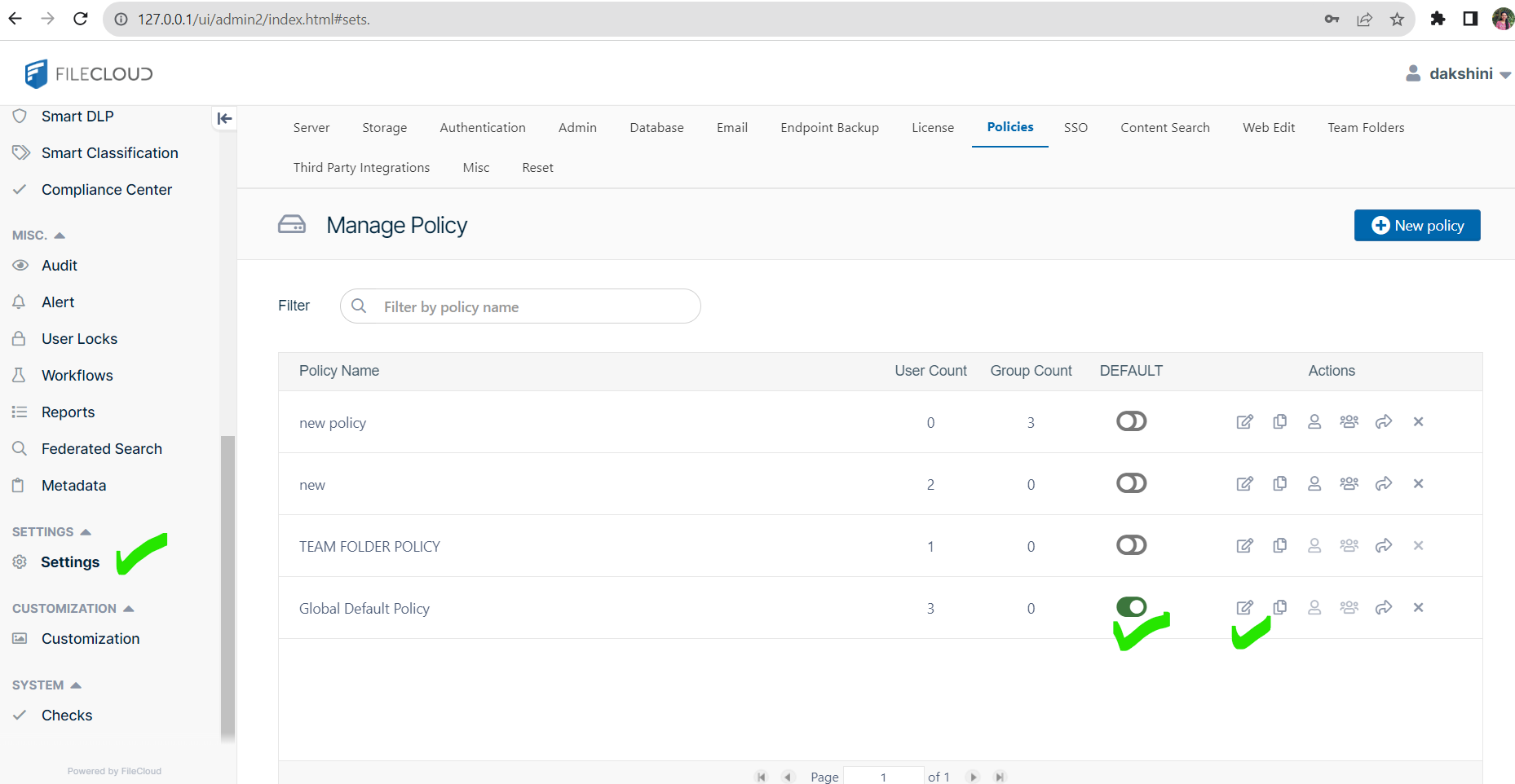
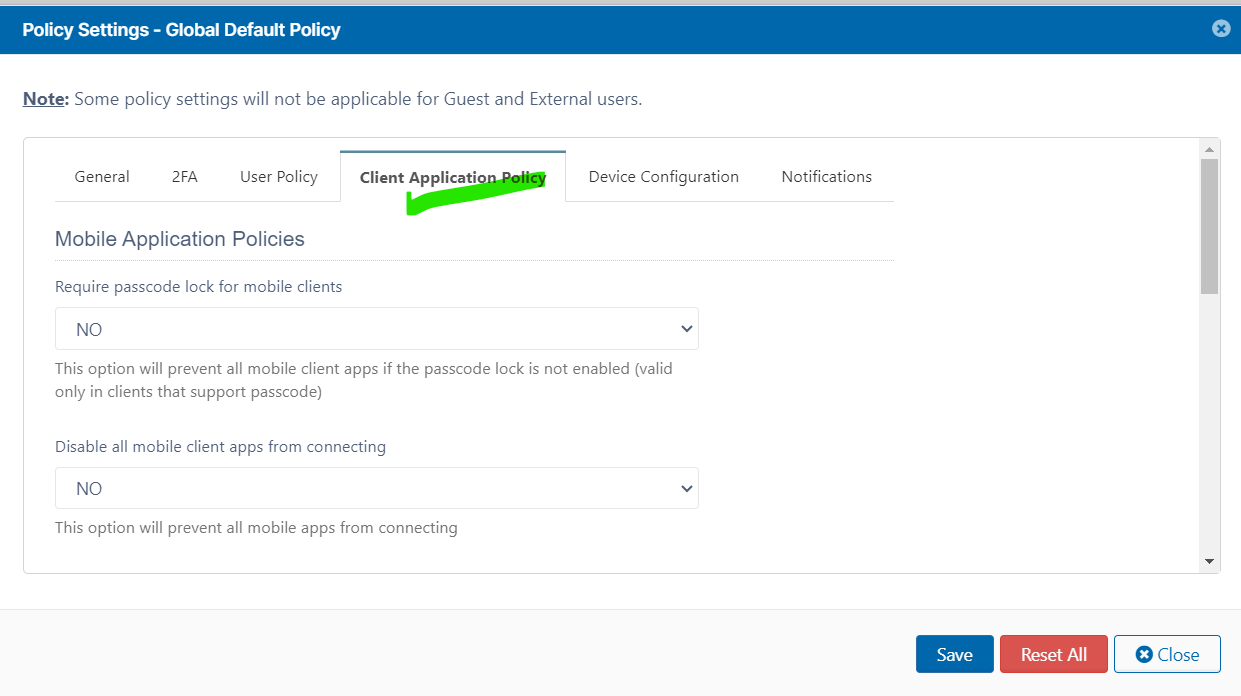
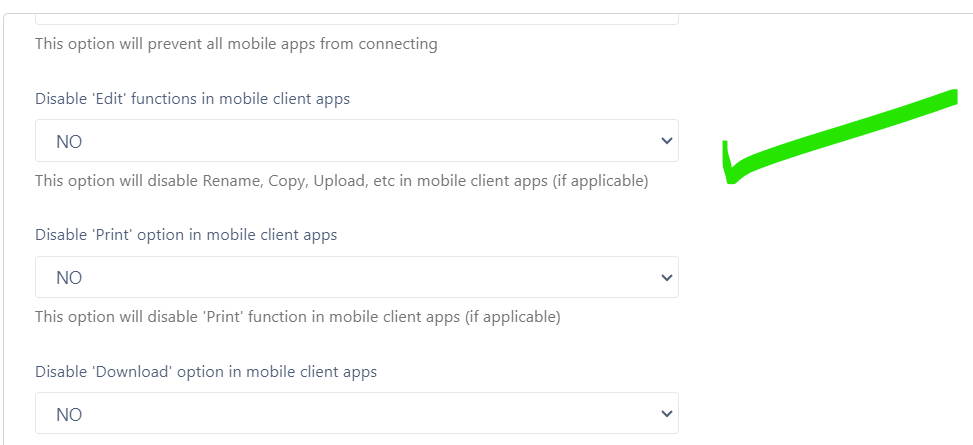
More details on these settings has been guided here:
Happy to help